

Feature Availability: MaxAI Builder is available for merchants with access to the Website Builder.
MaxAI Builder allows merchants to customize their website header and navigation using a conversational AI editor. Instead of manually editing website elements, you can simply describe the changes you want, and MaxAI will update your header design while keeping important storefront functions working.
You can use MaxAI Builder to update:
Logo placement and size
Navigation layout
Header styling
Search, cart, profile, location, and currency components
Mobile navigation layout
Why is it important?
Your website header is one of the first sections customers see when visiting your online store. A well-designed header helps customers easily navigate your website and access important shopping features.
With MaxAI Builder, you can:
Quickly customize your website navigation
Maintain a consistent storefront design
Improve customer browsing experience
Update your header without coding
Requirements:
You must have access to MaxAI Builder.
Your website must have an existing page available in Website Builder.
You must be logged in to your Prosperna Admin Dashboard.
Summary:
Open MaxAI Builder.
Describe your header changes.
Review the generated update in the preview.
Publish your changes when ready.
Steps to Edit Your Website Header Using MaxAI Builder
1. Log in to your Prosperna Admin Dashboard.
2. Go to Website Builder.
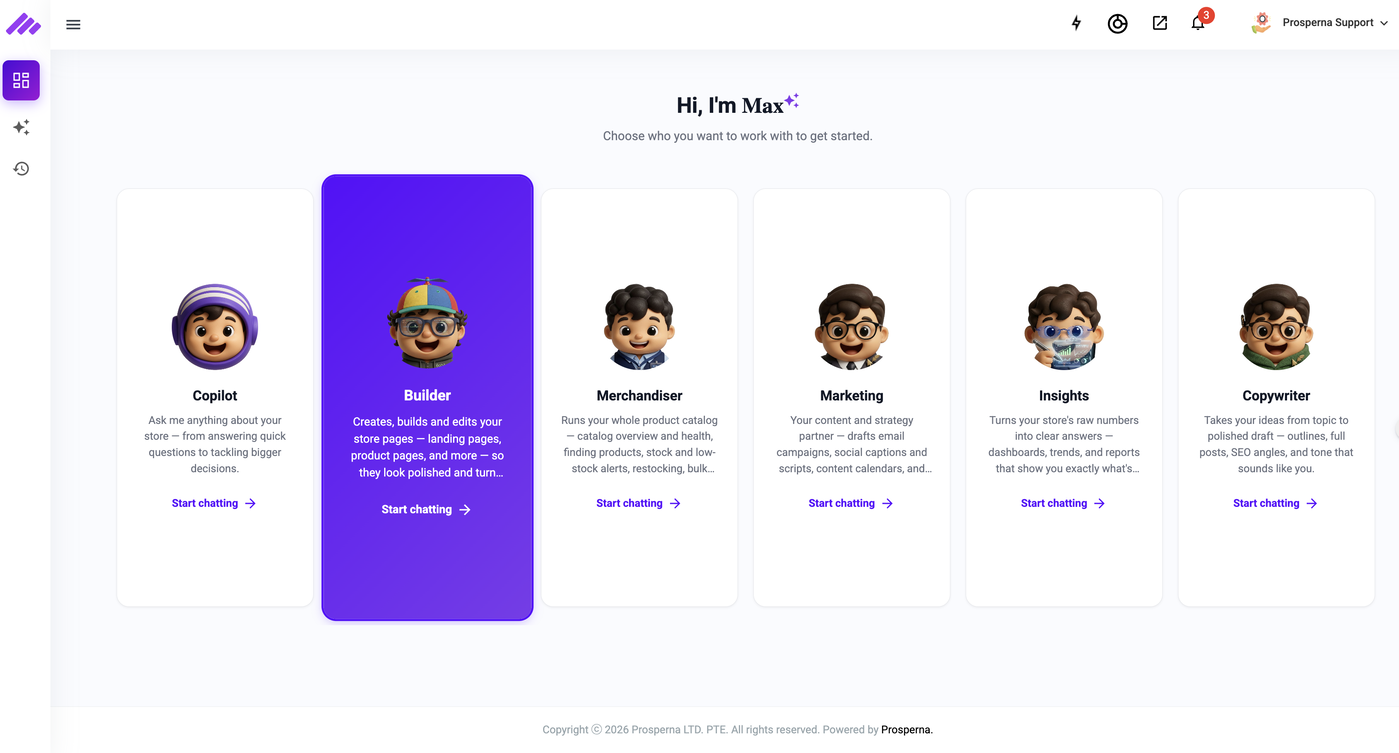
3. Open the MaxAI Builder chat interface.
4. Enter your header customization request.
Example requests:
"Make my navigation bar sticky."
"Change my logo size."
"Move the menu items to the center."
"Add a search bar to my header."
"Add a cart icon to my navigation."
5. Wait for MaxAI Builder to process your request.
6. Review the updated header in the website preview.
7. Continue requesting changes until your header matches your preferred design.
8. Click Publish to apply the changes to your storefront.
Result
Your website header will be updated based on your request and reflected across your storefront pages.
Customers will see the updated navigation design and continue to access supported header features such as search, cart, profile, location, and currency options.
Need more help?
For more information and assistance, please send an email to support@prosperna.com.