

Feature Availability: ALL PLANS
Adding social media icons to a website can offer several benefits, contributing to a more engaging and connected online presence.
Why is it important? Incorporating social media icons into your website is essential for expanding your online presence, fostering user engagement, and building a consistent brand image across various platforms.
Skill Level: Beginner | Advanced | Expert
How long does it take to do? 5 Minutes
Requirements:
Social Media Links
Summary
For Design Settings:
Go to Page Builder and Click Design Settings.
Under Design Settings, click Social Media Links.
Complete Fields.
Click Save.
For Menu Builder:
Go to Page Builder, click Menu Builder.
Select the Page you want to edit. Under Actions on the right side, Click Edit.
Click to Collapse the "Store Information" tab and choose your preferred social media links to be displayed on your homepage.
Click 'Add to Menu'.
On the upper right corner of Menu Builder, click 'Save Changes'.
Steps on How to Update Social Media Links
For the Design Settings:
1. Go to Page Builder and Click Design Settings.
2. Under Design Settings, click Social Media Links.
3. Complete Fields.
4. Click Save.
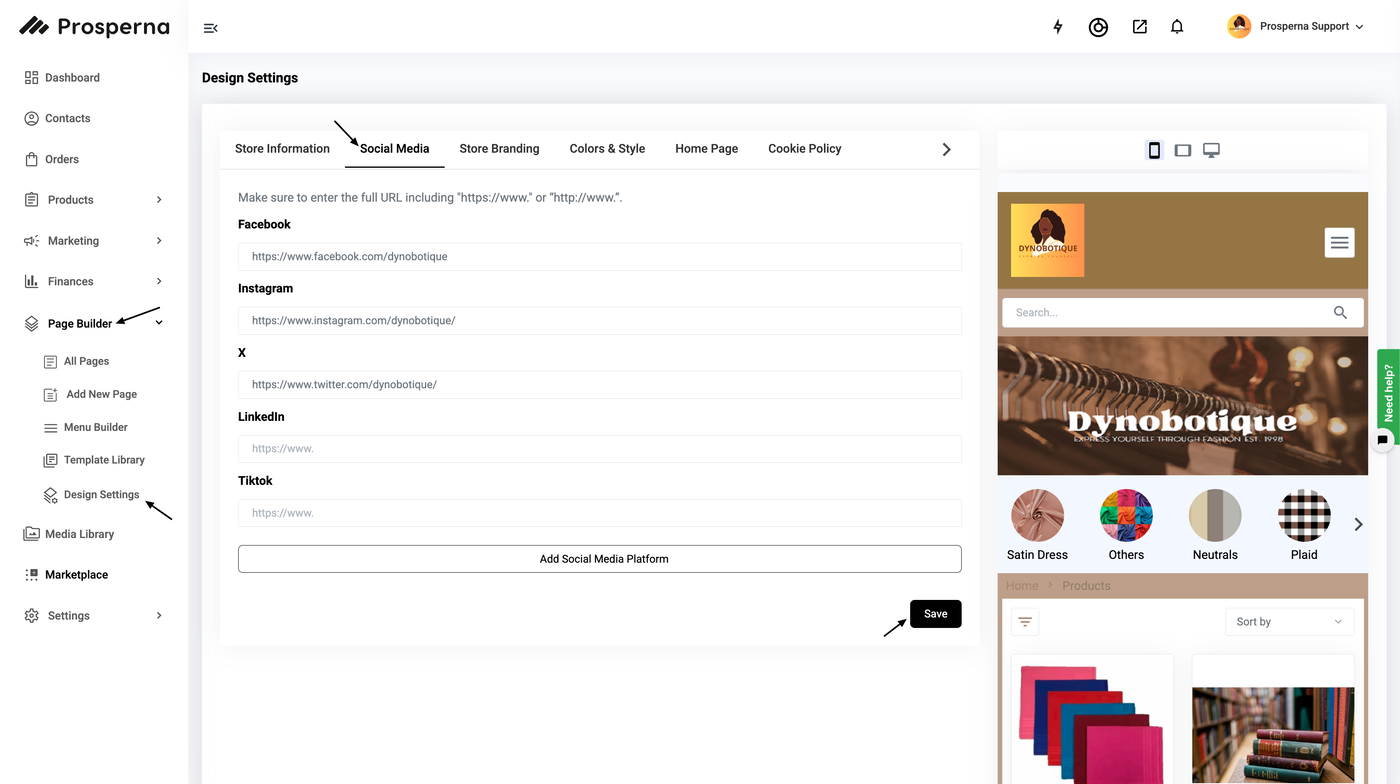
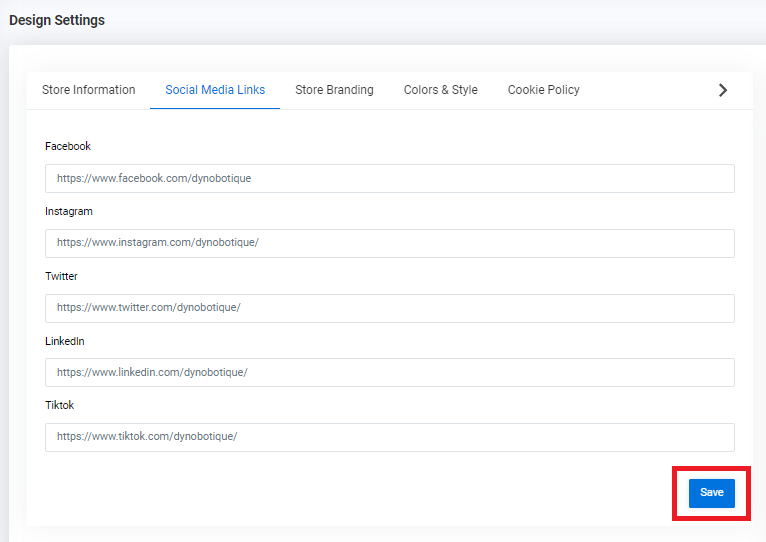
Result: You have successfully updated your Social Media Links in the Design Settings.
For the Menu Builder:
1. Go to All Pages, click Menu Builder.
2. Select the Page you want to edit. Under Actions on the right side, Click Edit.

3. Click the Social Media Icon you want to update

4. Click the Gear Icon on the upper right

5. Insert the Social Media Link

6. Click Save Draft then Publish

Result: You have successfully updated your Social Media Links in the Page Builder
Need more help?
For more information and assistance, please send an email to support@prosperna.com.