

Create Order enables the Merchants do the order processing of their items and send a payment link for the customer to review the agreed order and settle their payments and receive their respective orders. Merchants must be able to manually create a new order or take orders from their customers if they call or phone-in.
Why is it important? Create Order enables merchants to have the freedom to create orders on behalf of their customers. This feature accommodates customers who prefer placing call-in orders, such as those from the merchant's call center department or orders agreed upon via SMS or phone calls during the inquiry-to-order process.
Skill Level: Beginner | Advanced | Expert
How long does it take to do? 2 Minutes
Requirements:
Custom Order details
Customer Contact Record
Summary:
In the left Side Panel, select either Contact or Orders
Click Create Order
Create Custom Order
Click Place Order
Note:
Merchants should ensure that the customer is a registered and verified contact before proceeding with any transactions to avoid issues with order tracking and checkout. To create and verify a contact, please follow the steps outlined here: How to Create a Contact.
Steps to Create Order
Merchant Side:
1. In the left Side Panel, select either Contacts or Orders
2. Click Create Order
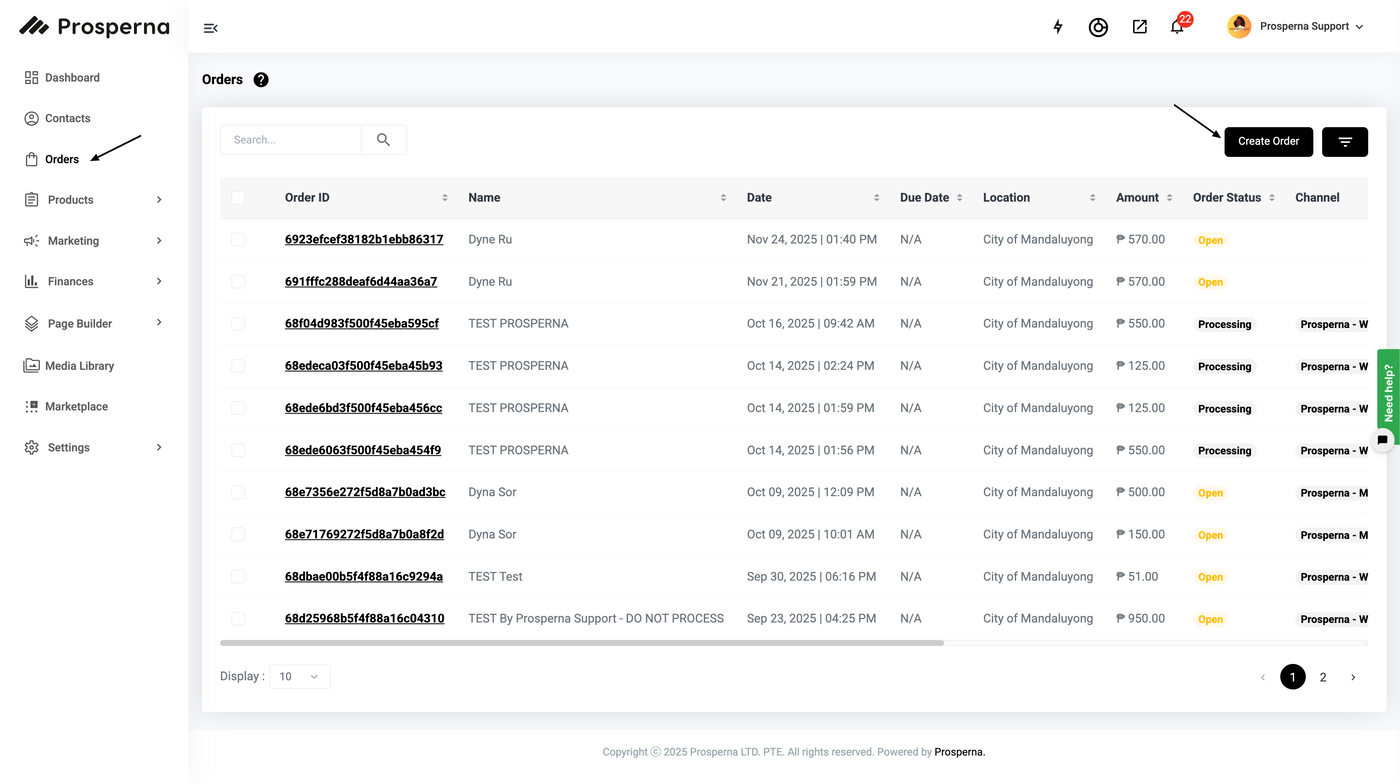
3. Create Custom Order
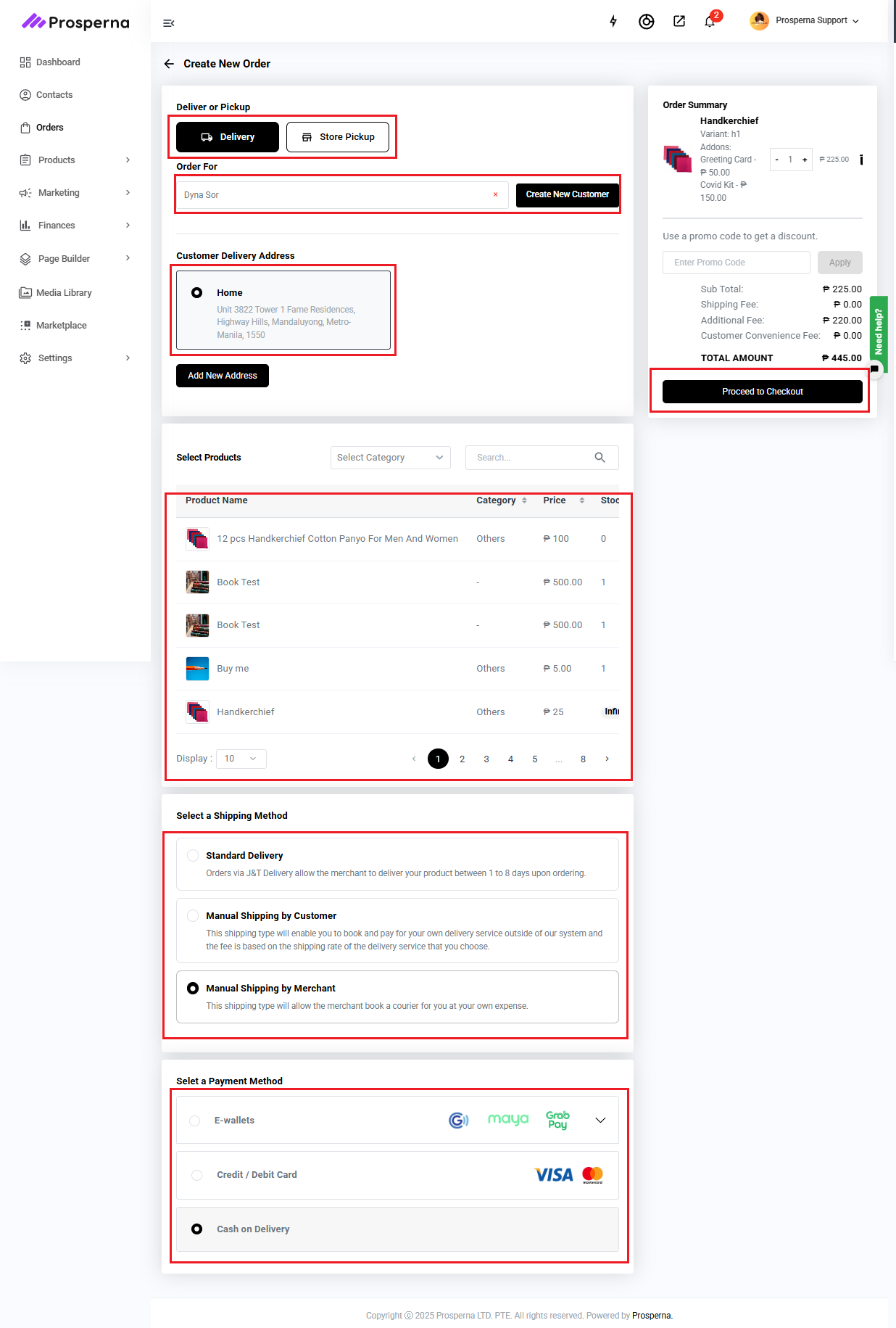
Delivery or Store Pickup – Choose how the order will be fulfilled.
Order For – Select the customer for the order.
Note: Once a customer name is selected, the Customer Delivery Address and Products sections will automatically appear.Shipping Address – Use the shown address or select Use Another Address if needed.
Products – Add the products for the custom order.
Shipping Method – Select the shipping method for the order.
Note: After selecting the shipping method, you can choose the Payment Method.Payment Method – Select the payment method for the order.
Proceed to Checkout – Review the order details, then click Proceed to Checkout to complete the order.
Note: You may edit the quantity in the Order Summary.
4. Click Place Order.
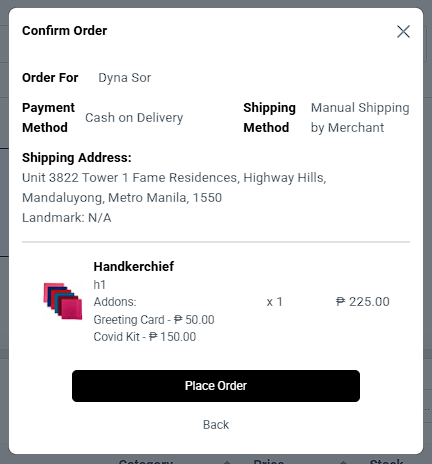
Result: You have successfully created a Custom Order for your customer.
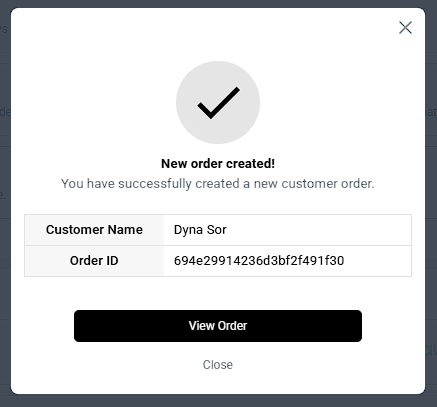
If E-WALLET Payment Method:
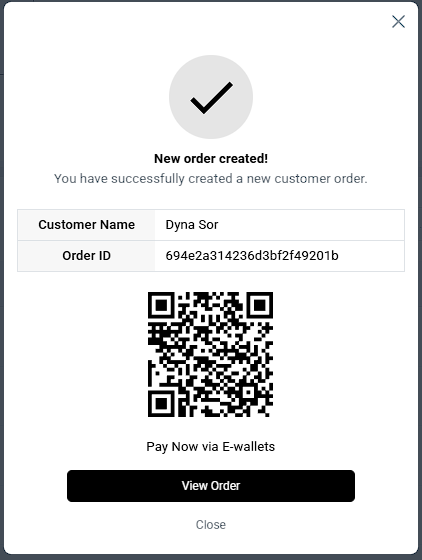
Note: Upon logging in to your site, customers need to go to 'My Orders' and click on 'Payment Link' to proceed with payment.
After an order is created, the merchant can now send a QR code for their client to pay.
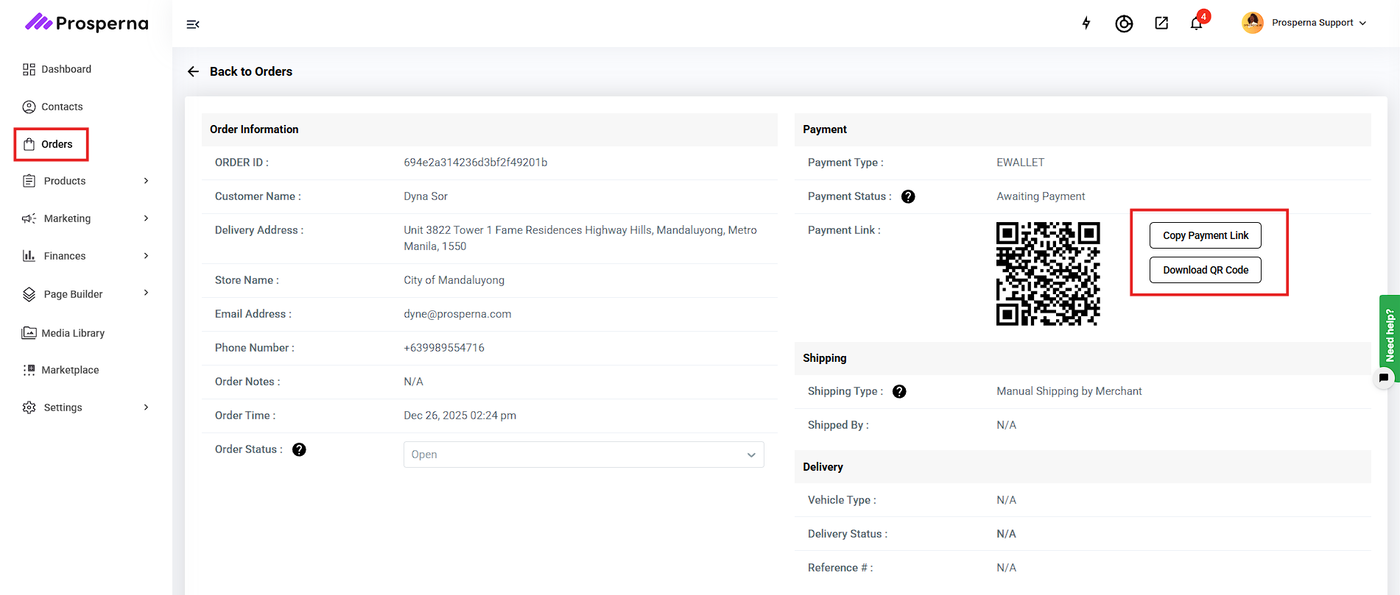
You can also go to Orders and select the specific order to download or copy the payment link.
Need more help?
For more information and assistance, please send an email to support@prosperna.com.