

Skill Level: Beginner | Advanced | Expert
Summary
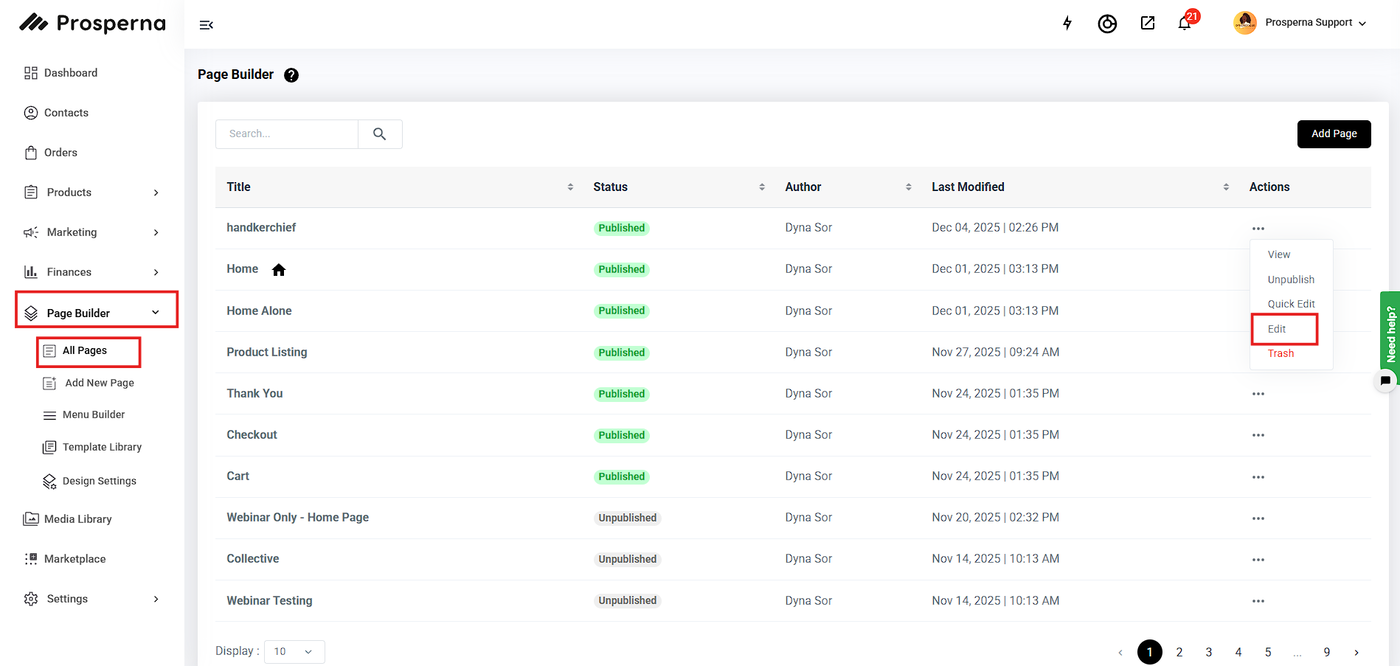
Go to Page Builder and click All pages
Click on the three dots on the left slide. If you will edit your page, click Edit
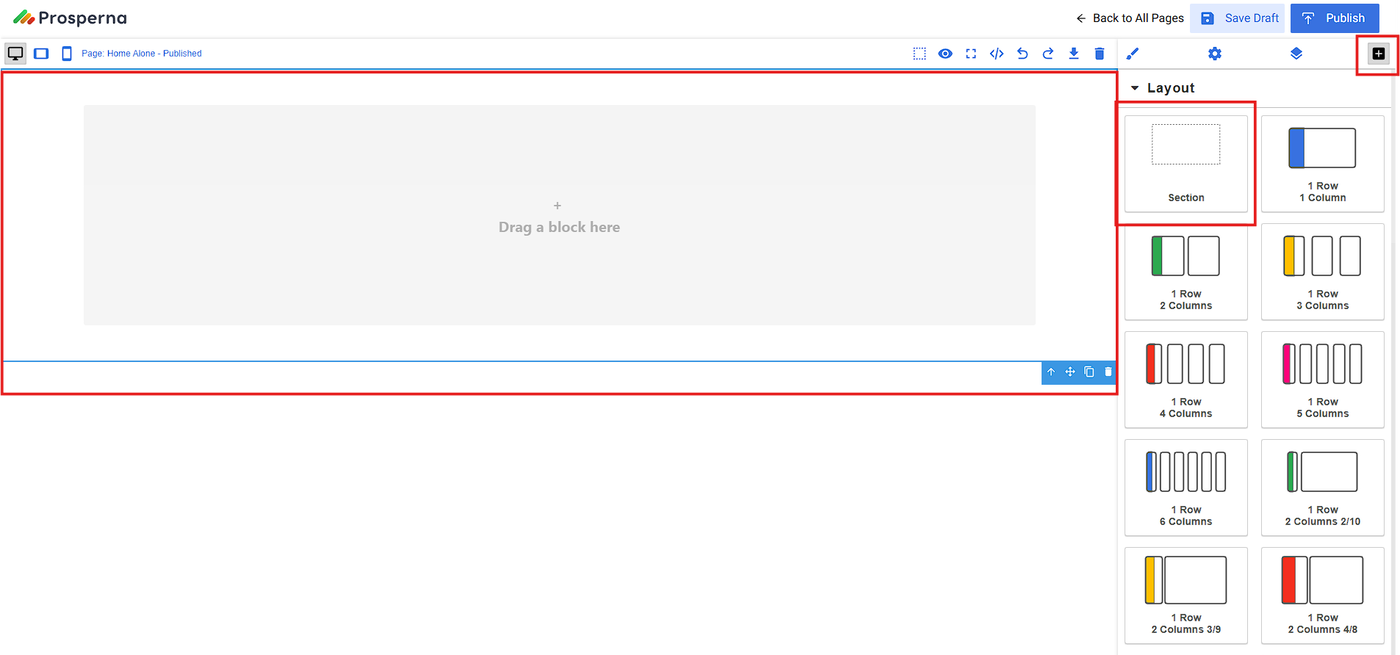
Click on the “+” sign to add a section
Drag and drop the Section to the page builder
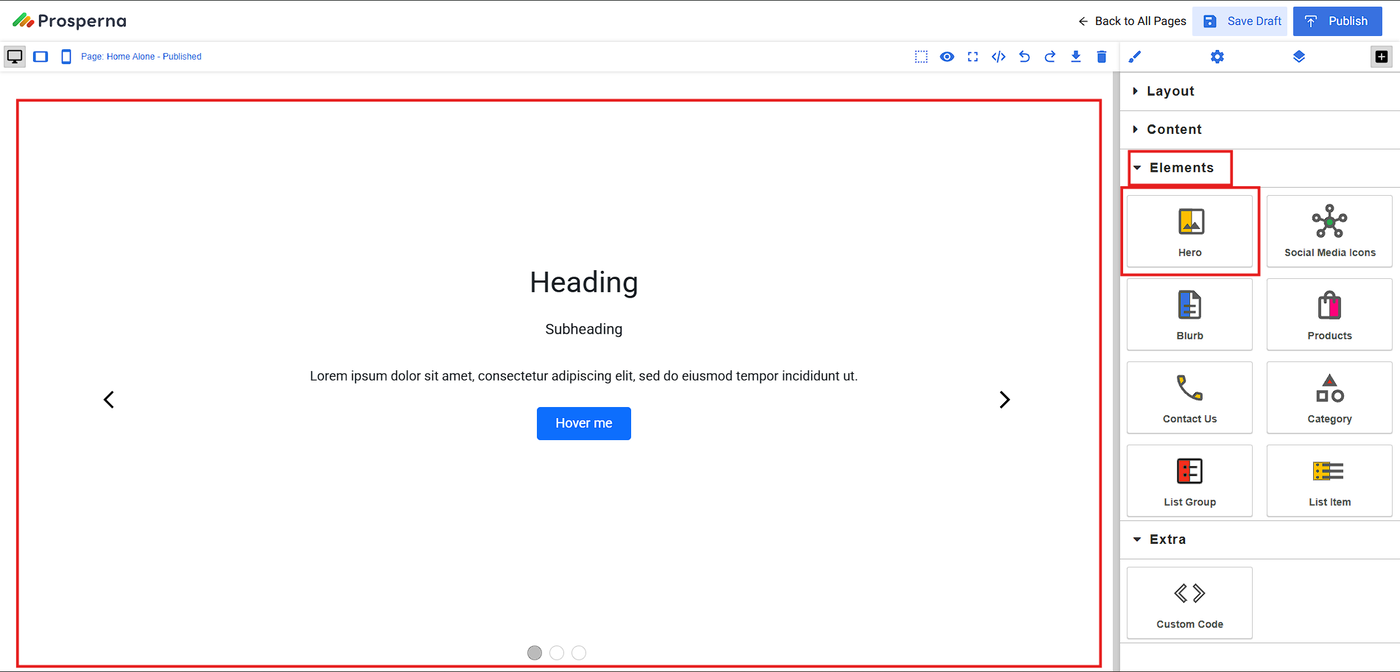
Scroll to the Elements to find Here
Click on Hero and drag and drop it to the section block
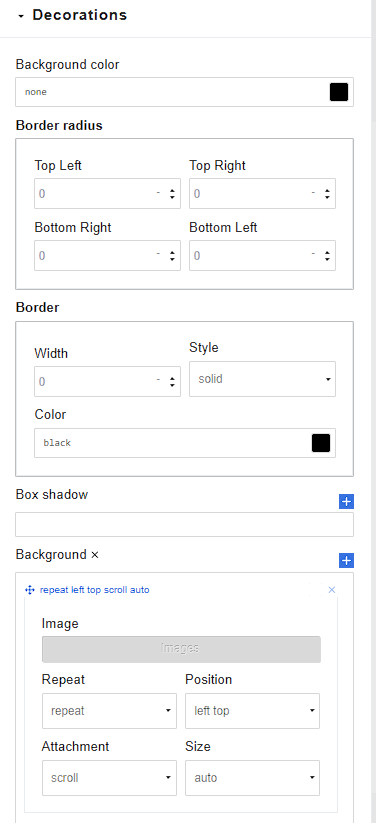
To add a background on your hero, scroll down to decorations and click Image to upload the background.
To customize your Hero Banner, you can design it using the Decorations feature according to your preference.
How to Add, Edit and Update a Hero Image
1. Go to Page Builder and select All Pages.
2. Click on the three dots on the left slide to edit.
3. Once you are in the editing pae, click on the “+” sign to add a section.
4. Drag and drop the Section to the page builder.
5. Scroll to the Elements to find Hero.
6. Click on Hero and drag and drop it to the section block.
7. To add a background on your hero, scroll down to decorations and click Image to upload the background.
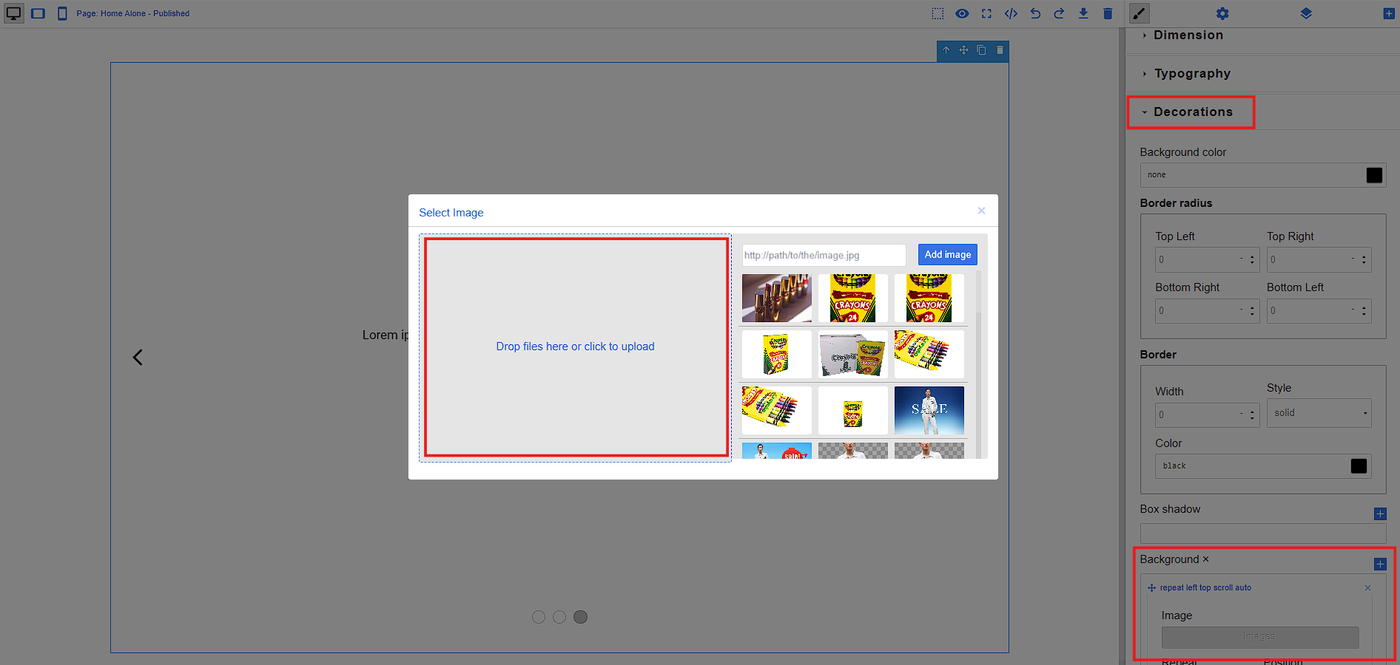
8. To customize your Hero Banner, you can design it using the Decorations feature according to your preference.
Need more help?
For more information and assistance, please send an email to support@prosperna.com.