

Skill Level: Beginner | Advanced | Expert
Summary
Go to Page Builder and click All pages.
Click on the three dots on the left slide and choose edit.
Once you are in the page builder, click on the “+” sign to add a section.
Drag and drop the Section to the page builder.
Scroll to the Elements to find “List Group” on the section block.
To add each item, drop "List item" on the section block.
To change the text and style, double click the text .
Once done, click publish or save draft to shave changes.
How to Add a Section with a List
1. Go to Page Builder and click All pages.
2. Click on the three dots on the left slide and choose edit.

3. Once you are in the page builder, click on the “+” sign to add a section.

4. Drag and drop the Section to the page builder.

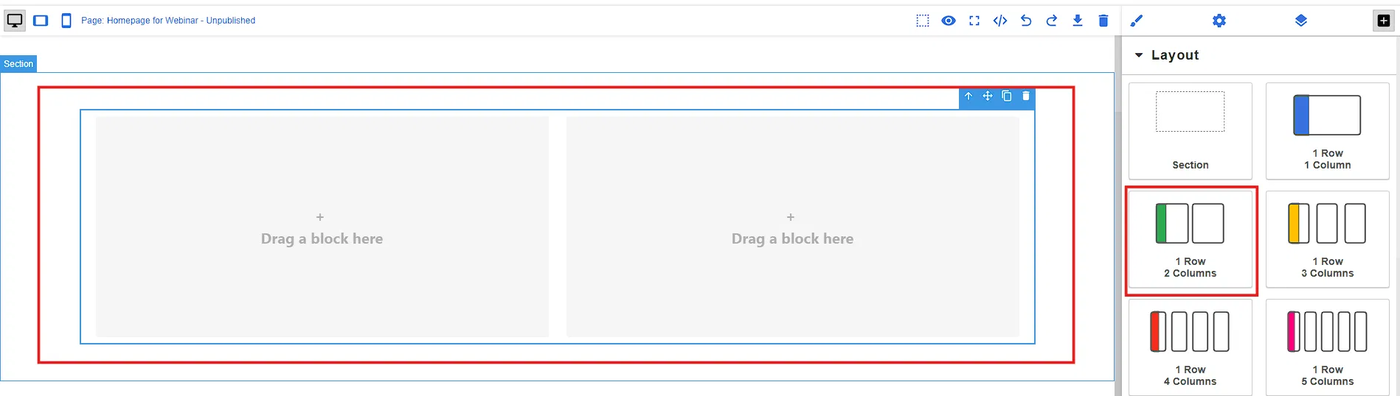
5. Scroll to the Elements to find “List Group” on the section block.
6. To add each item, drop "List item" on the section block.
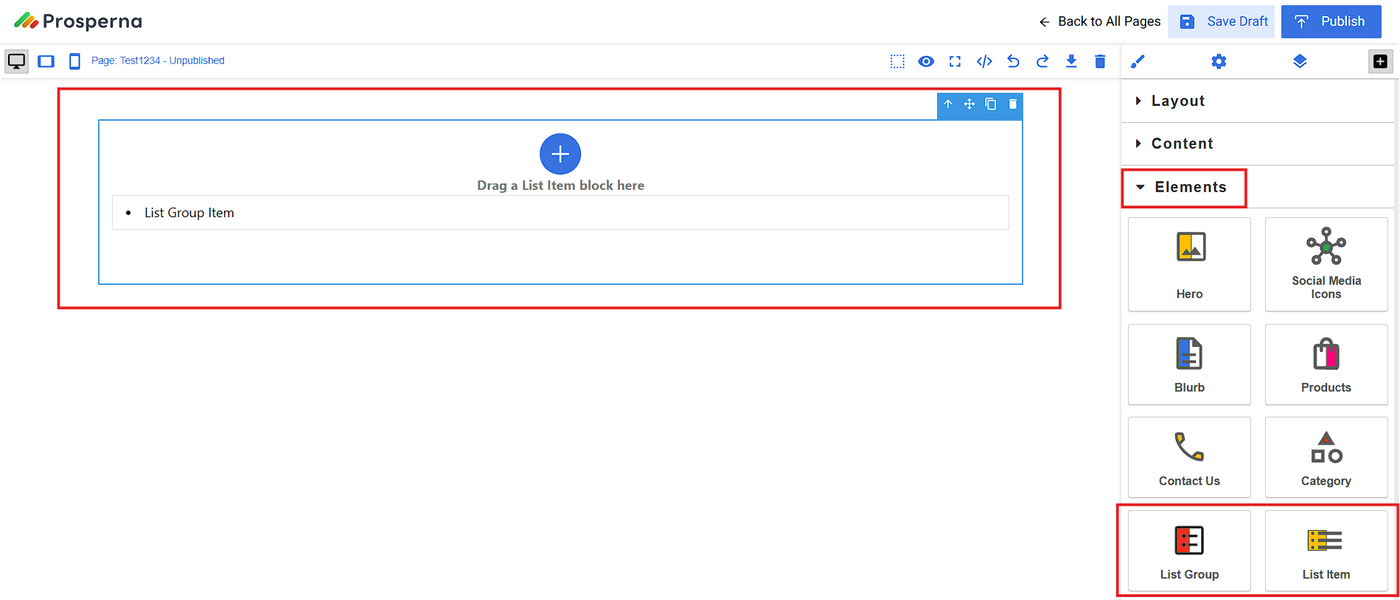
7. To change the text and style, double click the text .

8. Once done, click publish or save draft to shave changes.

Need more help?
For more information and assistance, please send an email to support@prosperna.com.