Feature Availability: ALL PLANS
A quick guide on enabling tax collection, adding state/province tax rates, and managing tax overrides for shipping, fees, and digital products.
Why is it important? Setting up taxes ensures accurate and compliant customer charges, prevents pricing issues, builds trust through transparency, and automates calculations to reduce manual errors in your store’s financial reporting.
Skill Level: Beginner | Advanced | Expert
How long does it take to do? 2 Minutes
Summary
Enable Tax Collection
Add a State/Province Tax
Create a Tax Override
Configure Your Tax Override
How to Set Up Taxes in Your Store
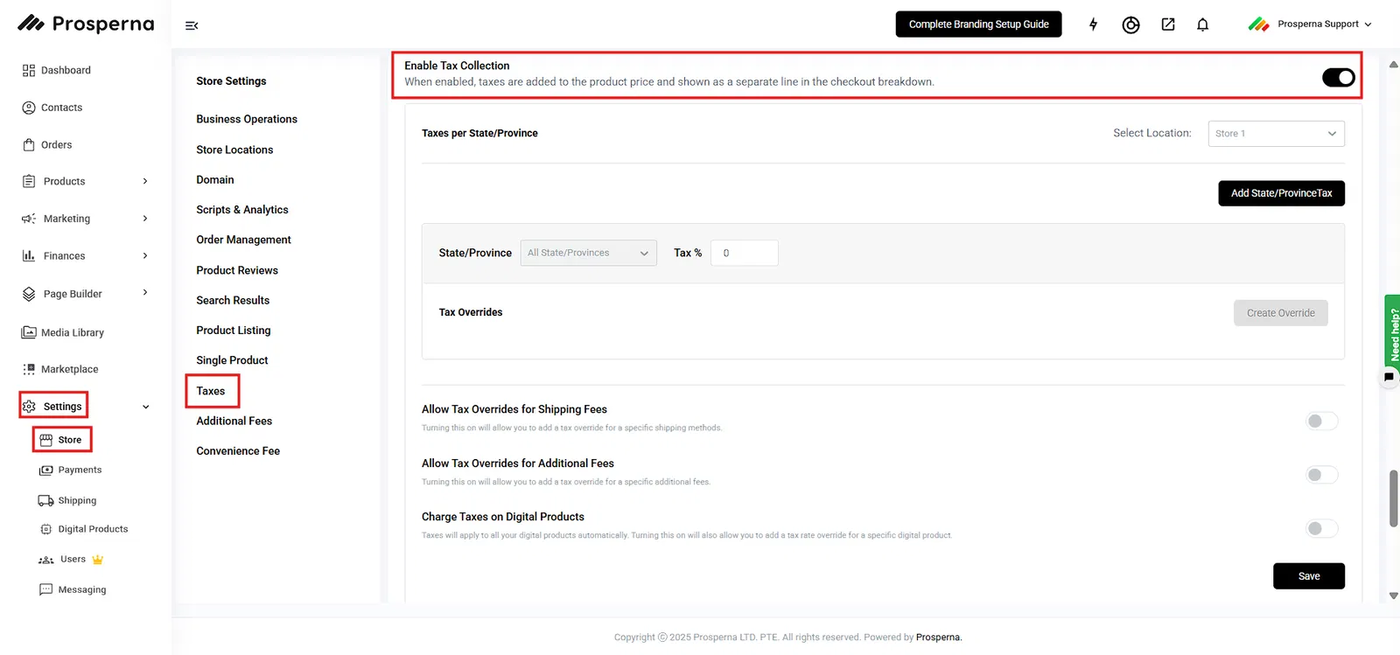
1. Enable Tax Collection.
Open Store Settings → Taxes.
Toggle Enable Tax Collection to ON.
2. Add a State/Province Tax.
Click Add State/Province Tax.
Select the State/Province.
Enter the Tax %.
Click Save.
Note: You must save the tax rule first before you can create overrides.
3. Create a Tax Override.
After saving, click Create Override under the saved tax rule.
Choose what you want to override: Product, Shipping Fee, or Additional Fee.
Enter the Override Tax %.
Click Save.
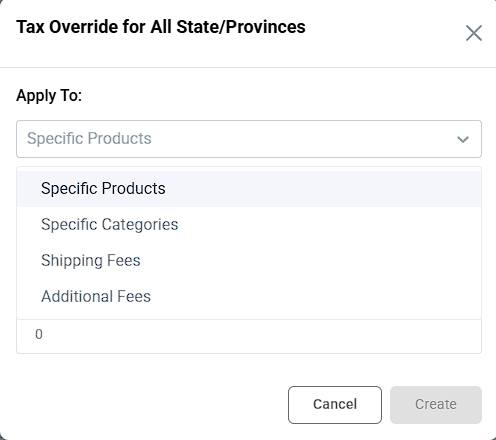
4. Configure Your Tax Override.

a.) Apply To:
Select which specific section the override tax should apply to:
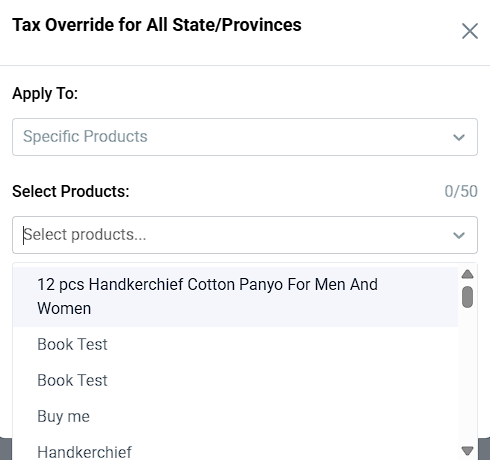
Specific Products – Apply the override tax to selected products only.
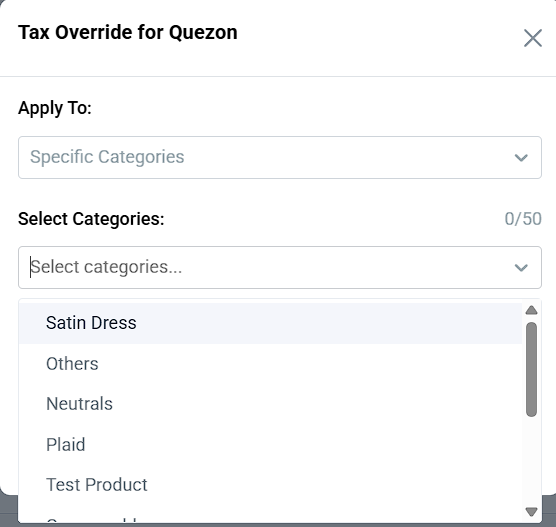
Specific Categories – Apply the override tax to all products within selected categories.
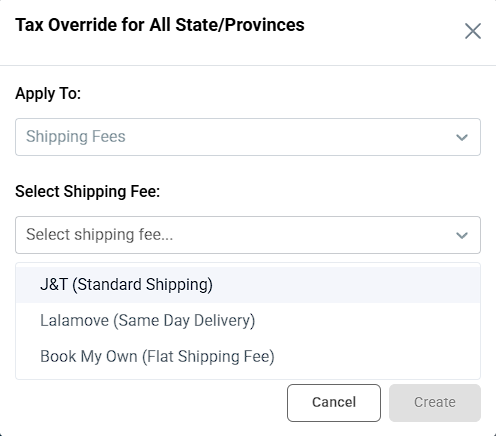
Shipping Fees – Apply the override tax to a specific shipping method.
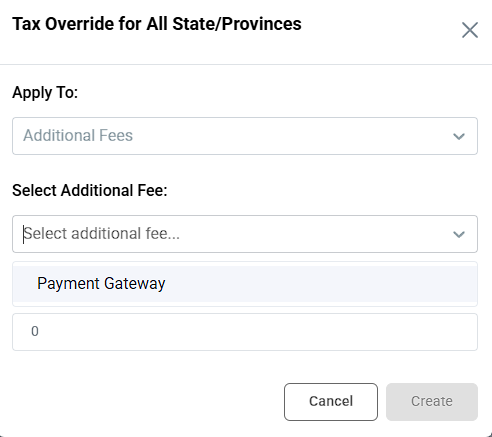
Additional Fees – Apply the override tax to a specific additional fee.
b.) Select Specific Products
Specific Categories
Shipping Fees
Additional Fees
C. Enter the Rate (%).
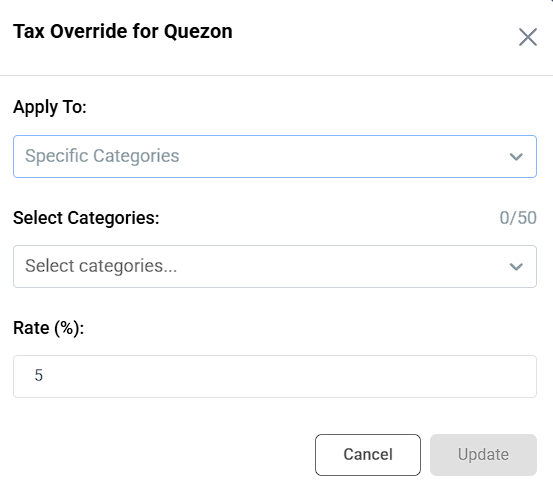
Result: You have successfully created a tax override for your selected products, categories, shipping fee, or additional fee.
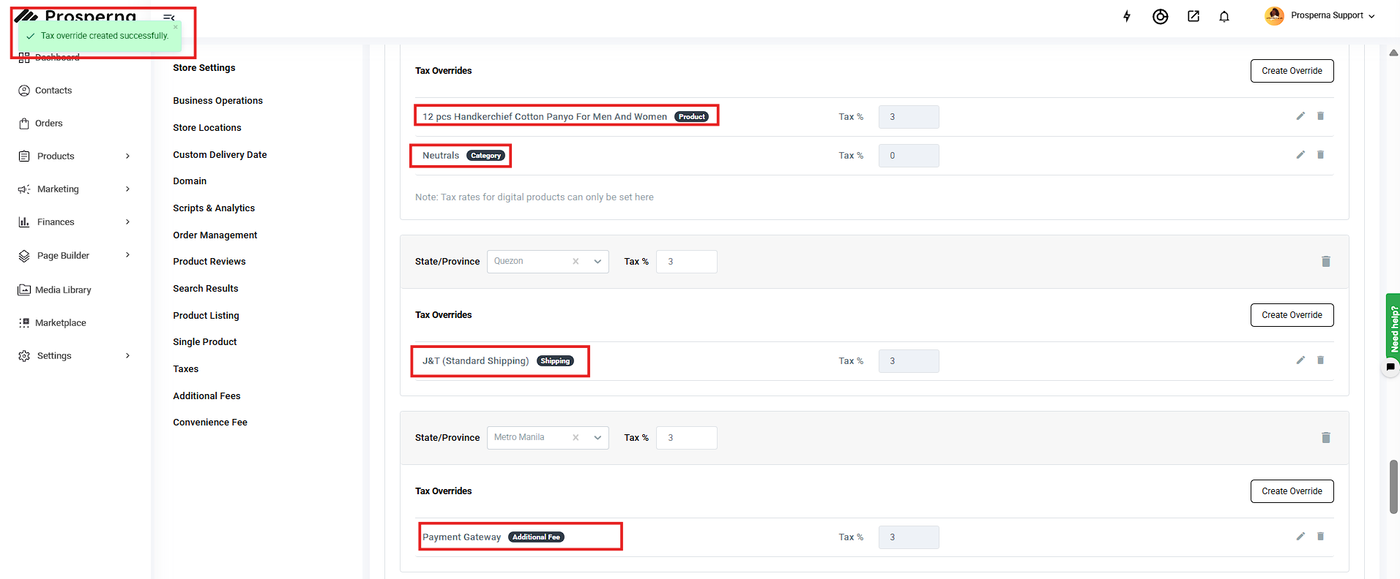
You may also toggle ON the following if needed:
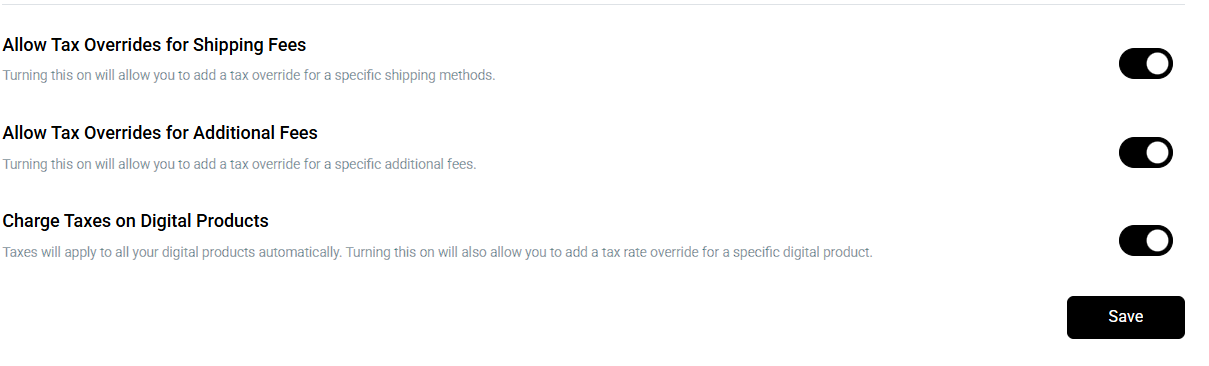
Allow Tax Overrides for Shipping Fees
Turning this on will allow you to add a tax override for a specific shipping method.Allow Tax Overrides for Additional Fees
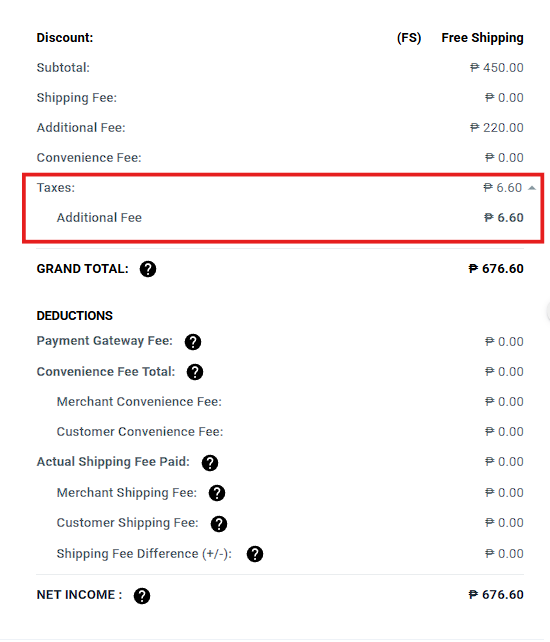
Turning this on will allow you to add a tax override for a specific additional fee.Charge Taxes on Digital Products
Taxes will apply to all your digital products automatically. Turning this on will also allow you to add a tax rate override for a specific digital product.
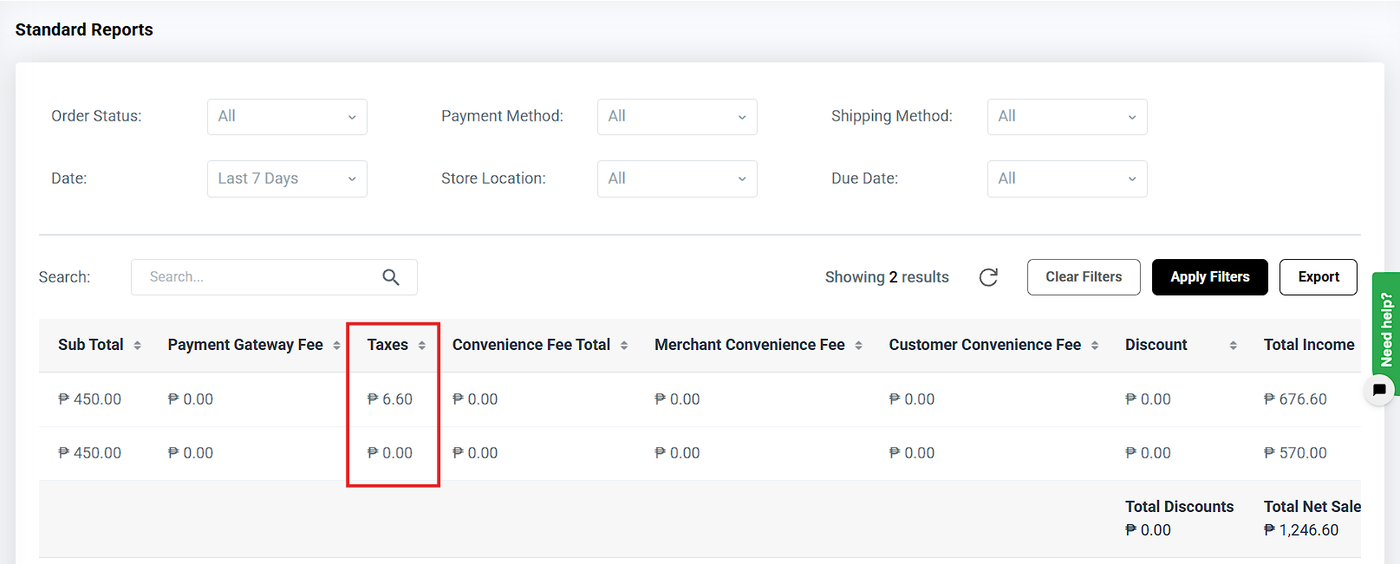
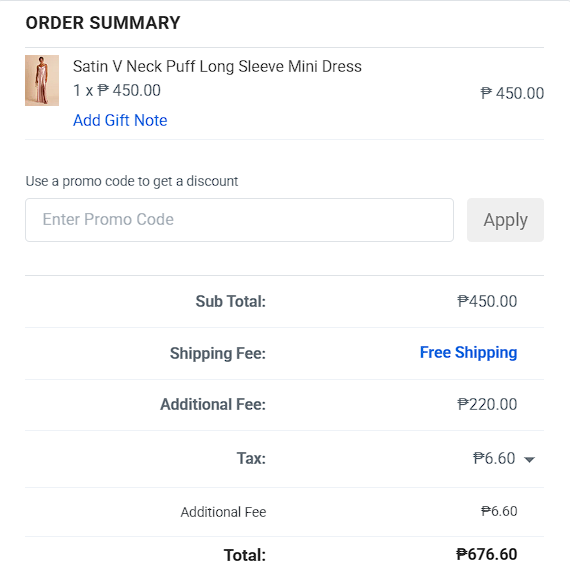
Checkout:
Note: Taxes applied to products and shipping fee after discount price based on your location
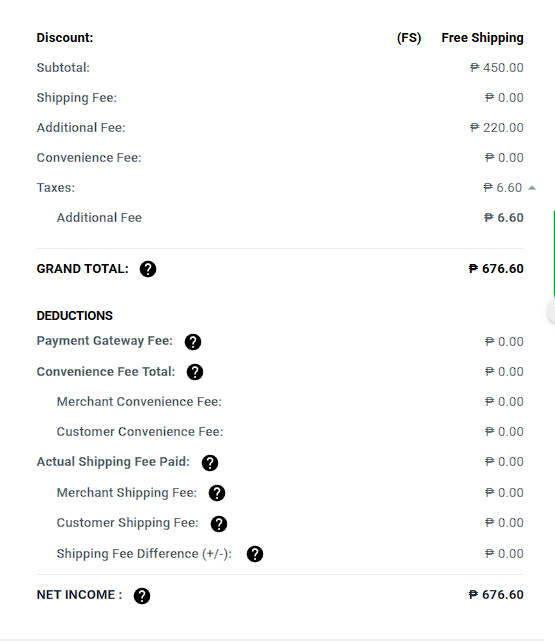
Orders:
Dashboard: