

Allow your customers to order by scanning the QR code while they are in your store. Provide real-time updates on the preparation of their order until completion.
Why is it important? These features improve customer convenience and operational efficiency by:
Table Management System
Enable your customers to order using the QR code with the ability to:
Pay Now
Pay Later
Automatically assign a table number to the customer based on the tables set.
Change the table number of the customer based on your preferences.
How long does it take to do? 5 Minutes
Requirements:
myPay activated account
Upgraded Plan
Activated QR Code Menu
Summary
Steps to Activate Your QR Code Menu
Go to Marketplace.
Look for QR Code Menu.
Click 'Learn More'.
Click 'Activate Now'.
Steps How To Use Your QR Code
Go to Settings.
Click Store.
Go to Business Operations.
Scroll down, locate the QR Code Menu (for dine-in customers), and enable the button.
Select Store Location.
Set Number of Tables.
Download and Print QR Codes.
Steps to Activate Your QR Code Menu
1. Go to Marketplace.
2. Look for QR Code Menu.
3. Click 'Learn More'.
4. Click 'Activate Now'.
Note: To use this feature, please ensure the Product Listing - Menu View add-on is activated
Steps How To Use Your QR Code
1. Go to Settings.
2. Click Store.
3. Go to Business Operations.
4. Scroll down, locate the QR Code Menu (for dine-in customers), and enable the button.
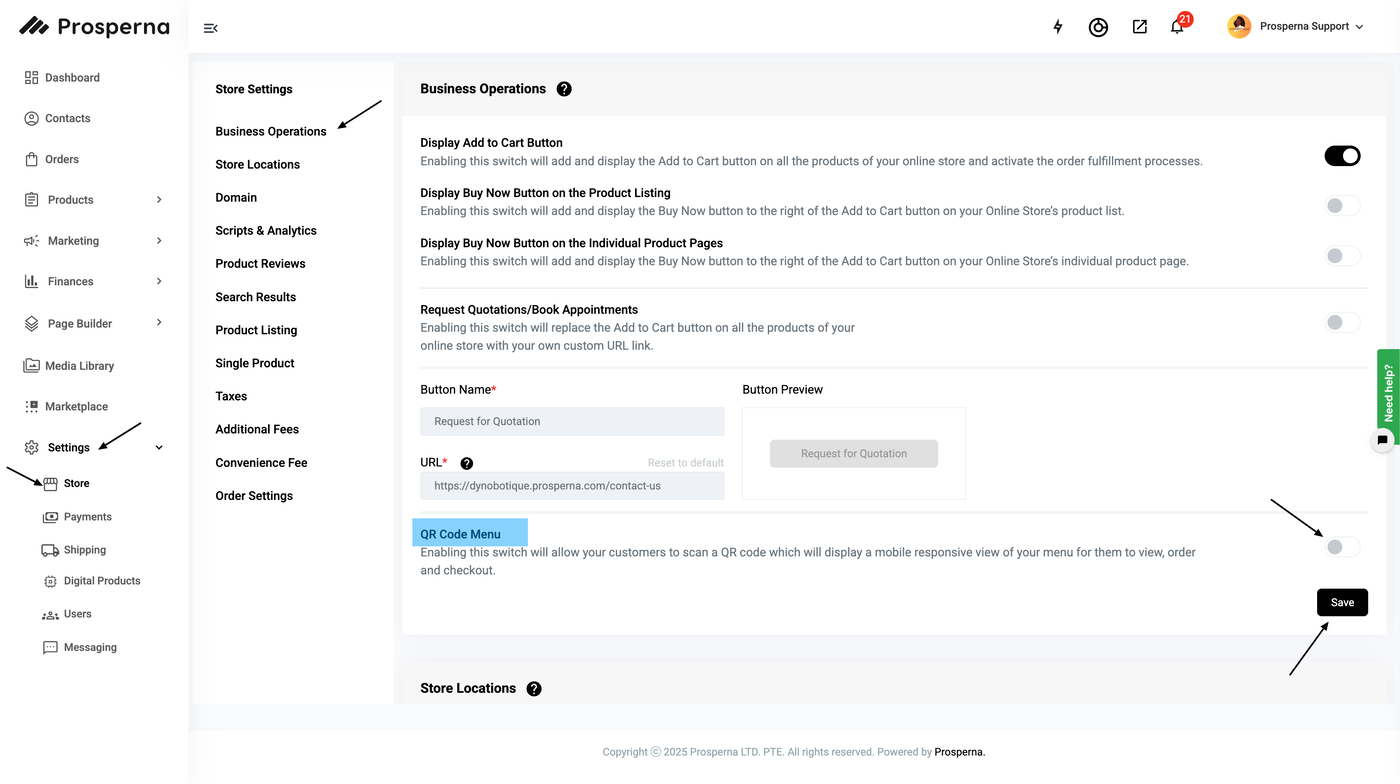
5. Select Store Location.
Use the dropdown menu labeled "Select Store Location" to choose the specific store location where the QR Code Menu will be available.
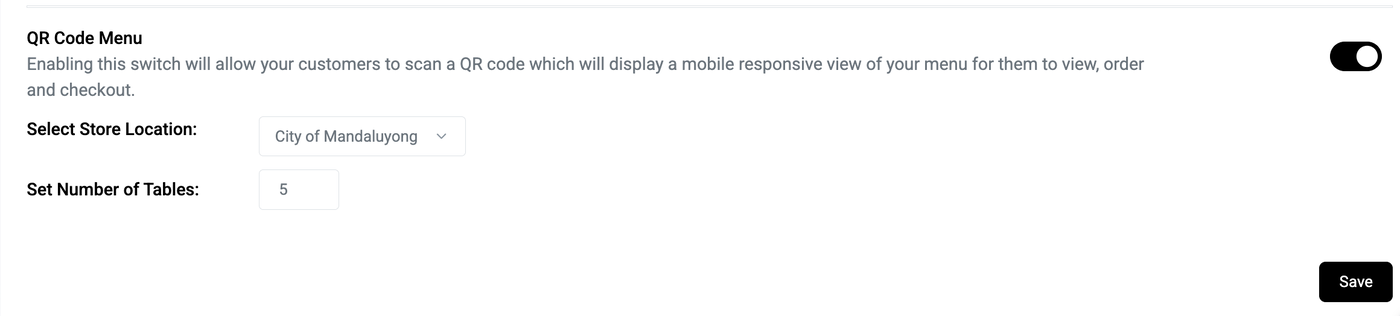
6. Set Number of Tables.
In the "Set Number of Tables" field, input the number of tables in your store that will have individual QR codes.
Once the number of tables is set, QR codes will be generated for each table, as shown above the input field.
7. Download and Print QR Codes.
For each table, click the "Download" button to save the QR code image to your device.
Use the "Print" button to print the QR code directly for placement on the respective table.
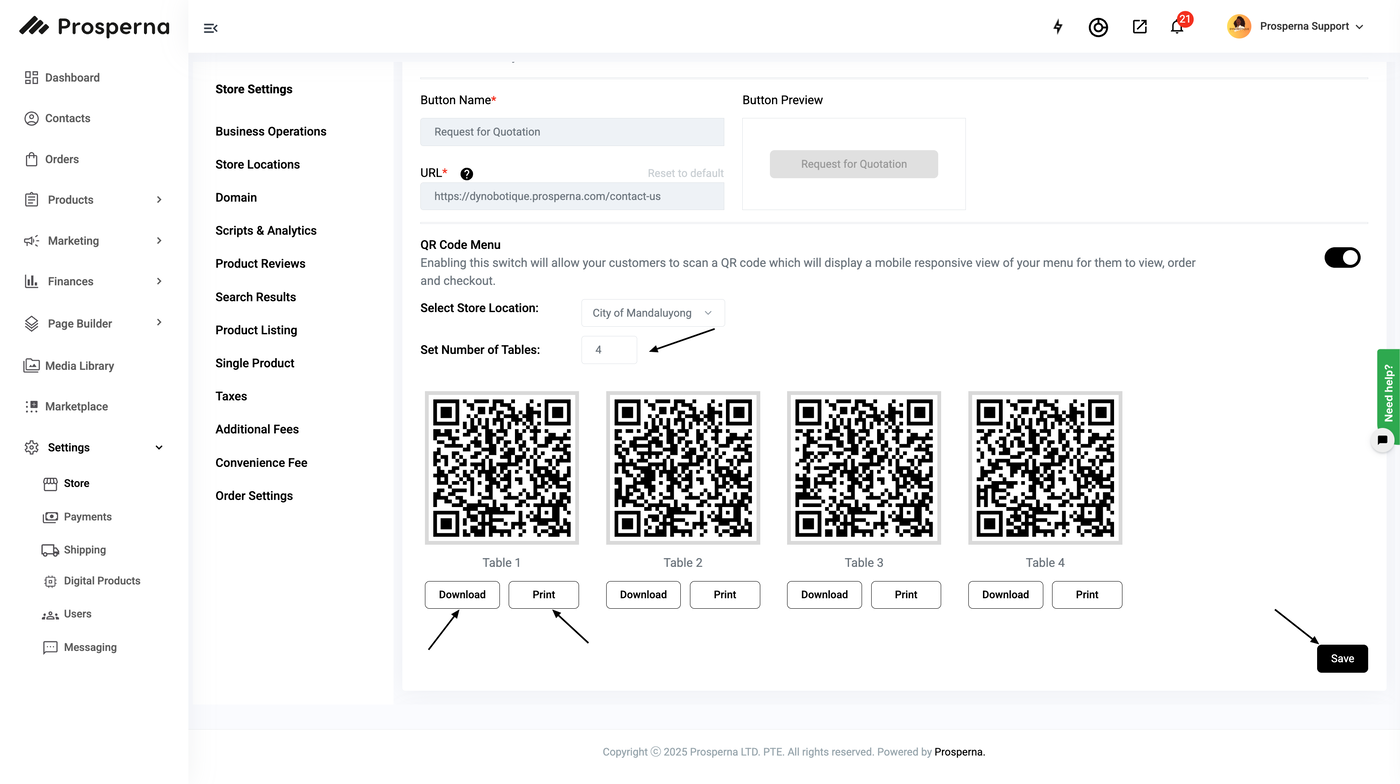
Result: You have successfully enabled the QR Code Menu for dine-in customers. The QR codes for each table have been generated, and you can now download or print them for placement in your store.
Try scanning it on your device now!
Need more help?
For more information and assistance, please send an email to support@prosperna.com.