

Feature Availability: ALL PLANS
Having an online store is about placing your business out for the world to see and shop. With eCommerce becoming the norm, it's imperative that merchants sell both online and offline.
Why is it important? Offer convenience for customers by saving their time and effort to purchase from you. Even better, since the catalog is digital, they can easily search for a variety of products while still getting all the relevant information they need to know about it.
Skill Level: Beginner | Advanced | Expert
How long does it take to do? 5 Minutes
Requirements:
Product Image
Product Details
Price
Variant
Summary
Go to Inventory,
Create a New Product/Select Edit on an existing product.
Click Variants, and Toggle Enable Variant.
Add New Variant Type and Combinations
Click Save.
Note: In creating variant, you must have existing categories first. To create categories click here.
Creating variants to your products allow you to show the different sizes, colors, and other classifications of a specific product.
Steps to Add Variant
1. Go to Inventory.
2. Create a New Product/Select Edit on an existing product.
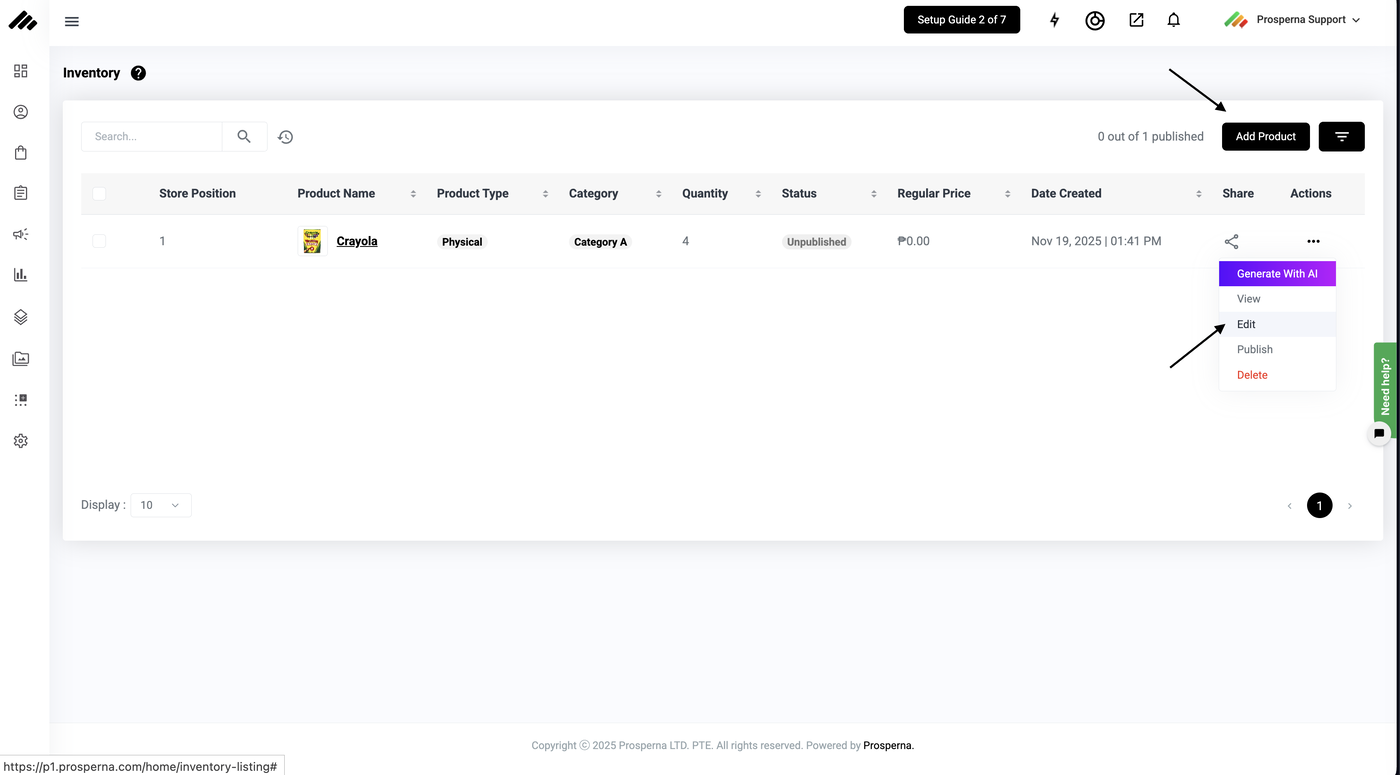
3. Click Variants, and Toggle Enable Variant.
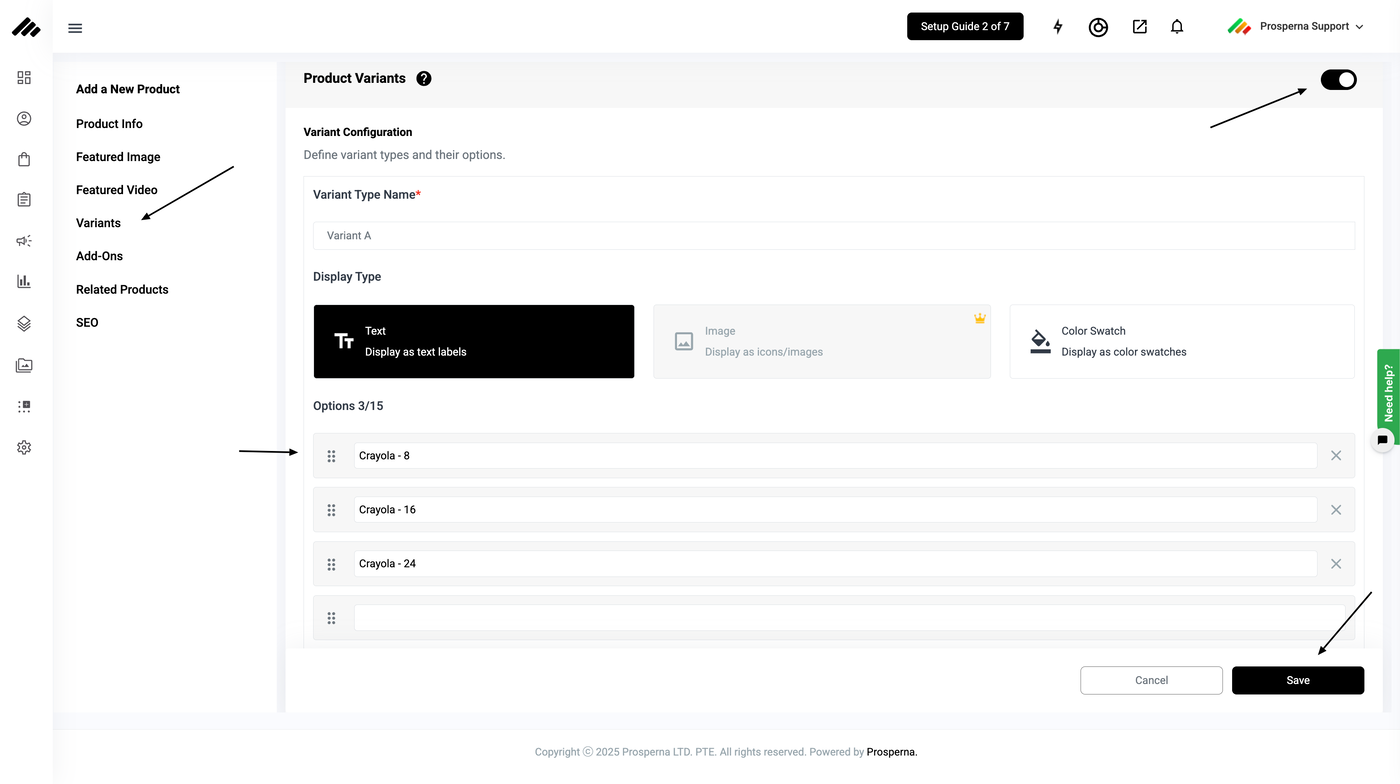
4. Add New Variant Type and Combinations
The system will automatically populate variant combinations based on the Variant Types you create. The number of Variant Types and Options you can add depends on your plan. Regardless of the plan limits, please ensure that your variant selections remain clear, presentable, and not overcrowded to provide the best customer experience.
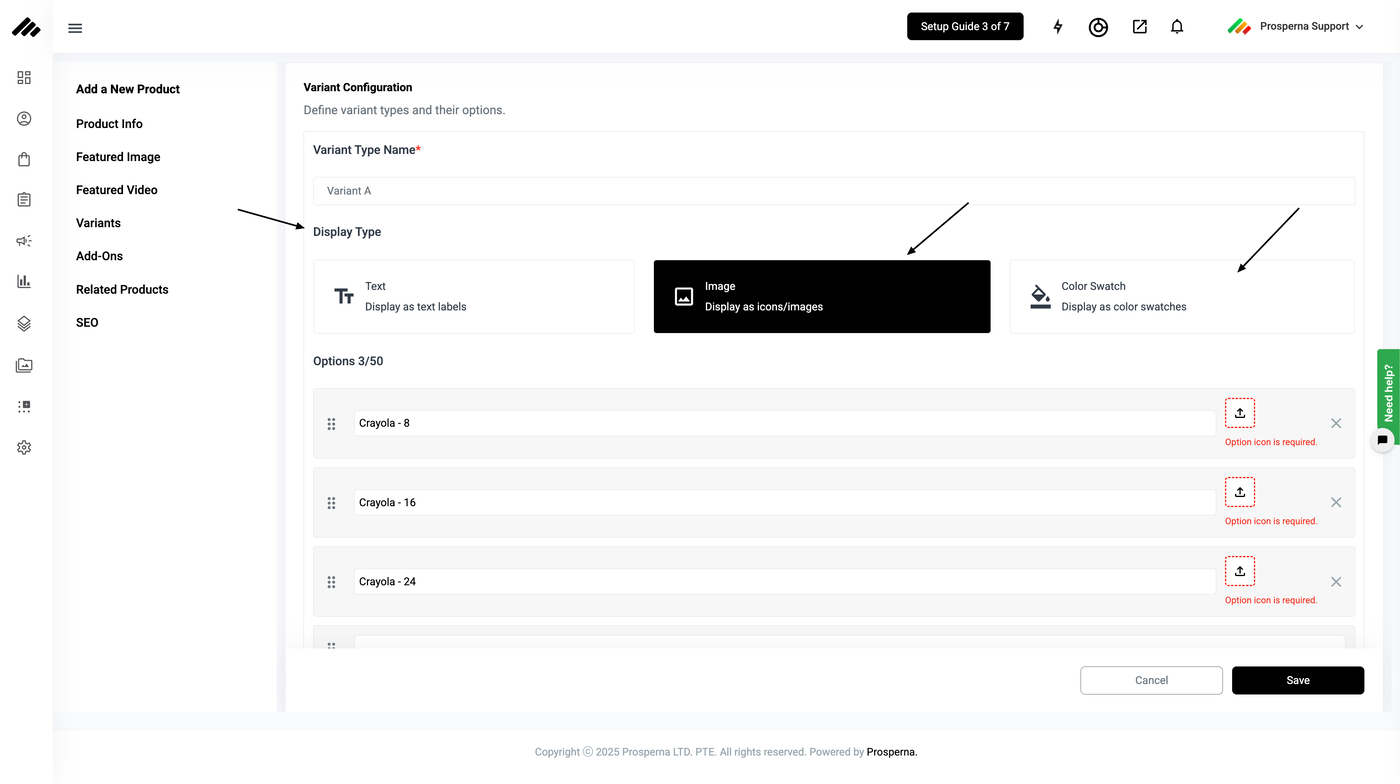
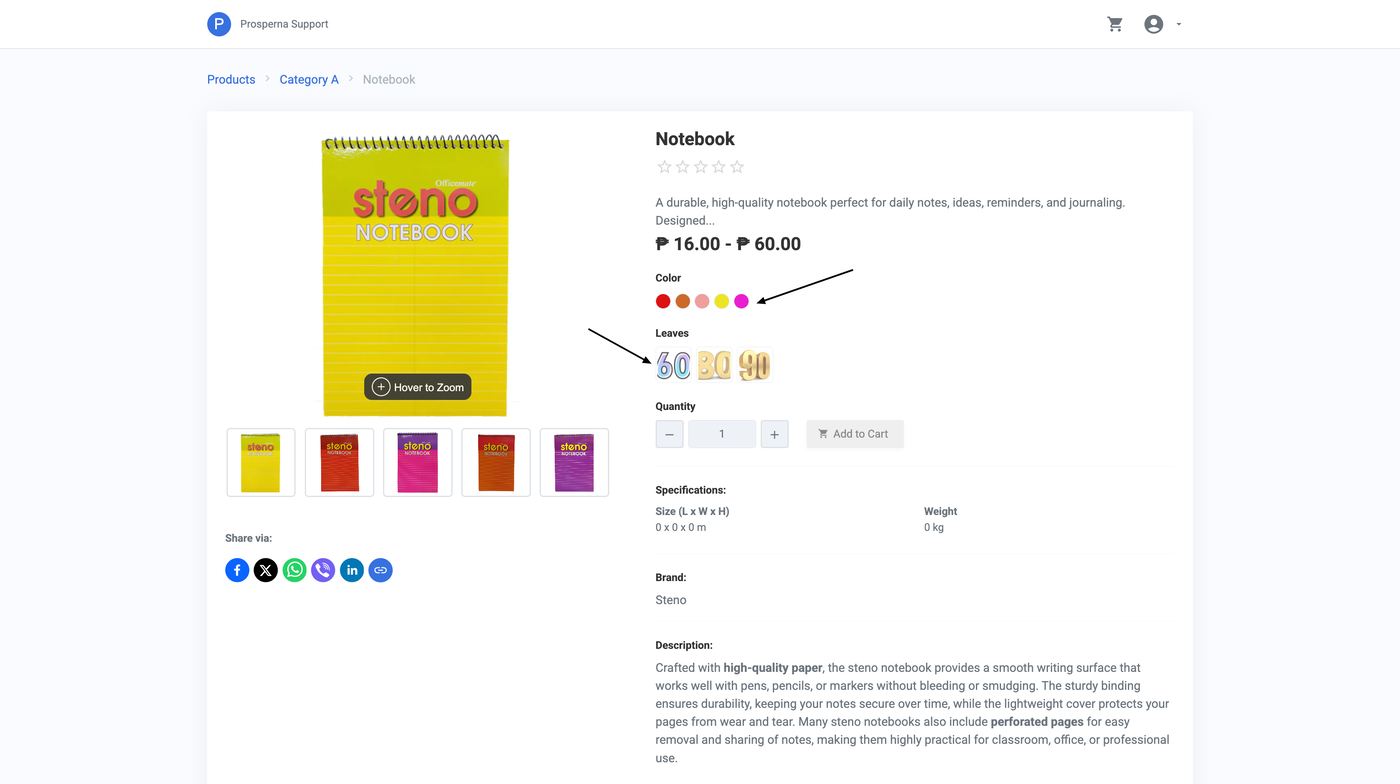
Display Type Options
Text – Displays the variant option as plain text.
Image – Allows you to assign an image to the variant, enabling customers to select using an image preview.
Color Swatch – Ideal for color-based variants; shows a visual color swatch when the option represents a color.
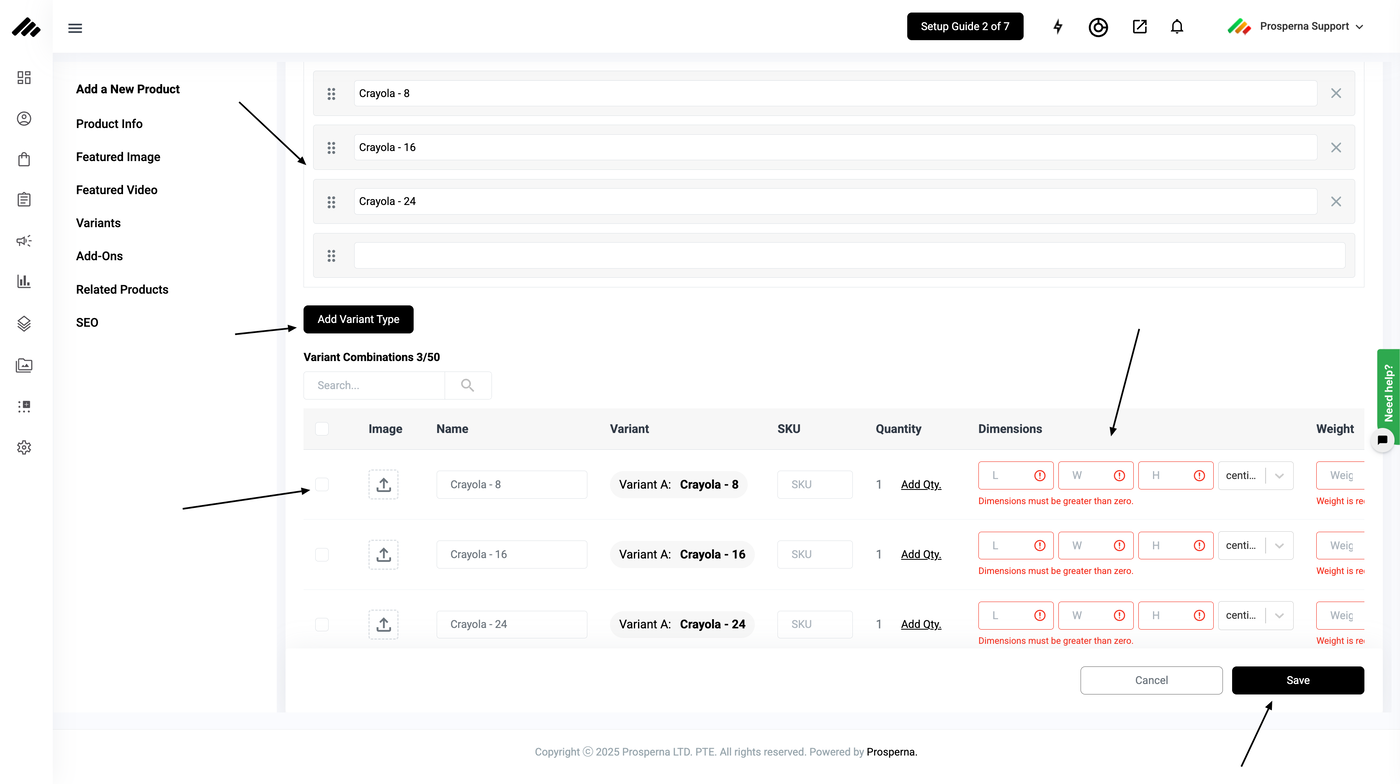
Note: Please fill in all information required.
5. Click Save
Results: You have successfully created Variants.
Need more help?
For more information and assistance, please send an email to support@prosperna.com.