

Feature Availability: ALL PLANS
Setting up Google SMTP (Simple Mail Transfer Protocol) is important because it allows you to send emails using your Google account from 3rd party applications (like Prosperna), scripts, or other email clients that do not have their own email servers.
Why is it important? By setting up Google SMTP, you can use Google's email servers to send emails to your customers, which is reliable and efficient and avoids the risk of your email being flagged as spam.
Skill Level: Beginner | Advanced | Expert
How long does it take to do? 5 Minutes
Summary
Go to your Prosperna Account.
Under Settings, select Messaging.
Under Email Integration, locate Gmail.
Click Reconnect with Google.
Select the Google account you want to connect.
Complete the Google sign-in and authorization.
Wait while Prosperna connects your Gmail account and sends a test email.
Once connected, your Gmail account is ready to send emails from Prosperna.
Steps to Setup Google SMTP
The Gmail integration has been updated from the previous Google SMTP/App Password setup to a more secure Google OAuth 2.0 connection. You no longer need to generate, copy, or enter a Google App Password in Prosperna.
1. Go to your Prosperna Account
Log in to your Prosperna account and open the Settings menu.
Select Messaging, then open Email Integration.
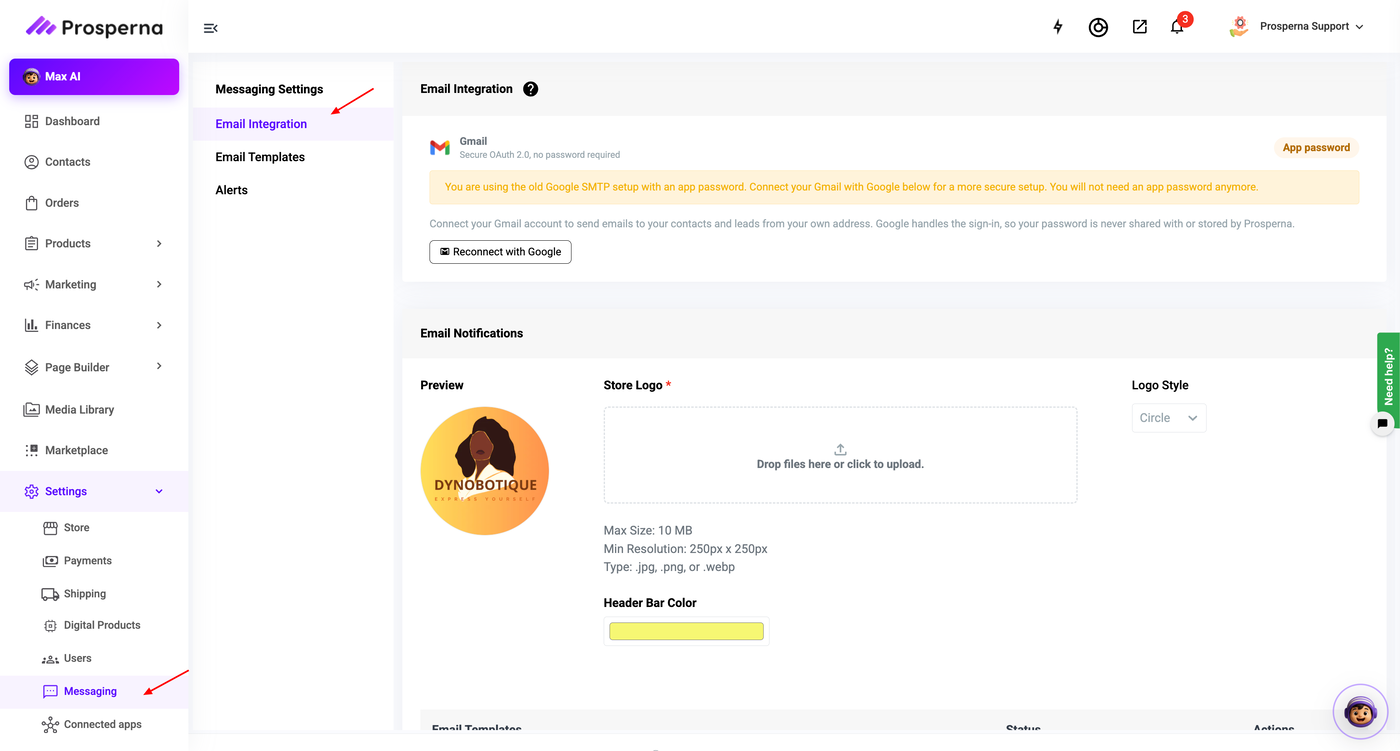
Messaging Settings → Email Integration
2. Locate the Gmail integration
Under Email Integration, locate Gmail. The page will indicate that the integration uses Secure OAuth 2.0 and that no password is required.
If your account is still using the old Google SMTP setup with an App Password, Prosperna will display a notice asking you to connect Gmail with Google for the newer, more secure setup.
3. Click “Reconnect with Google”
Click Reconnect with Google. A Google sign-in window will open.
4. Select your Google account
In the Google sign-in window, select the Google account you want to connect to Prosperna. If the account is not listed, select Use another account and sign in with the appropriate Google account.
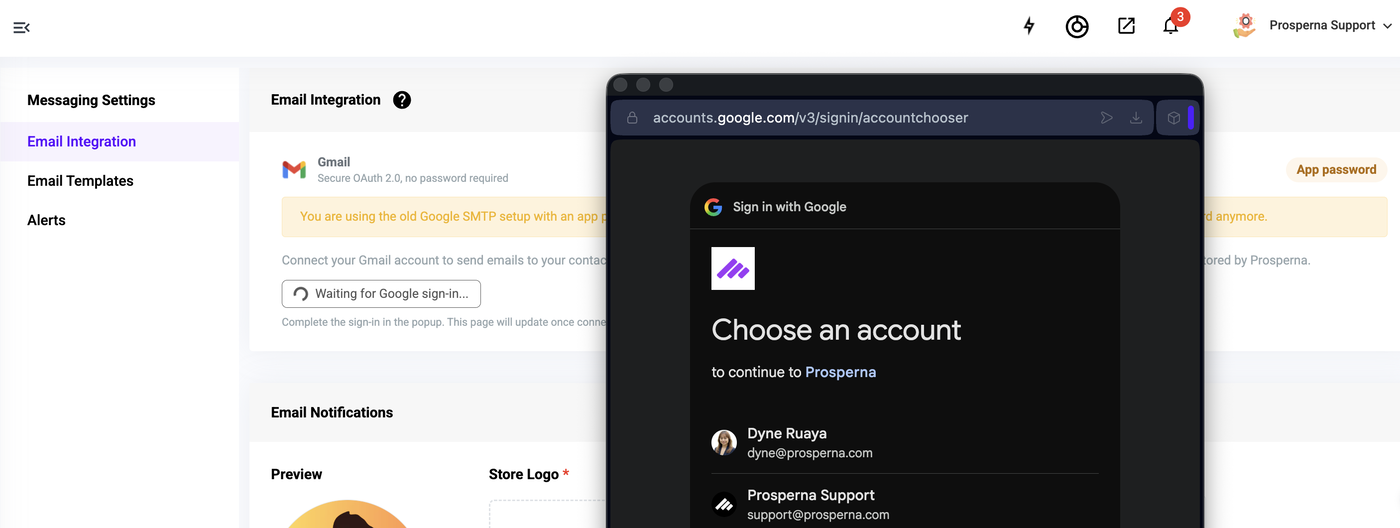
Google account selection
5. Complete the Google authorization
Follow the Google prompts to complete the sign-in and authorization. Google handles the authentication, so your Gmail password is not entered or stored in Prosperna.
6. Wait for the Gmail connection to complete
After authorization, Prosperna will connect your Gmail account. During this process, Prosperna will send a test email to confirm that the connection works.
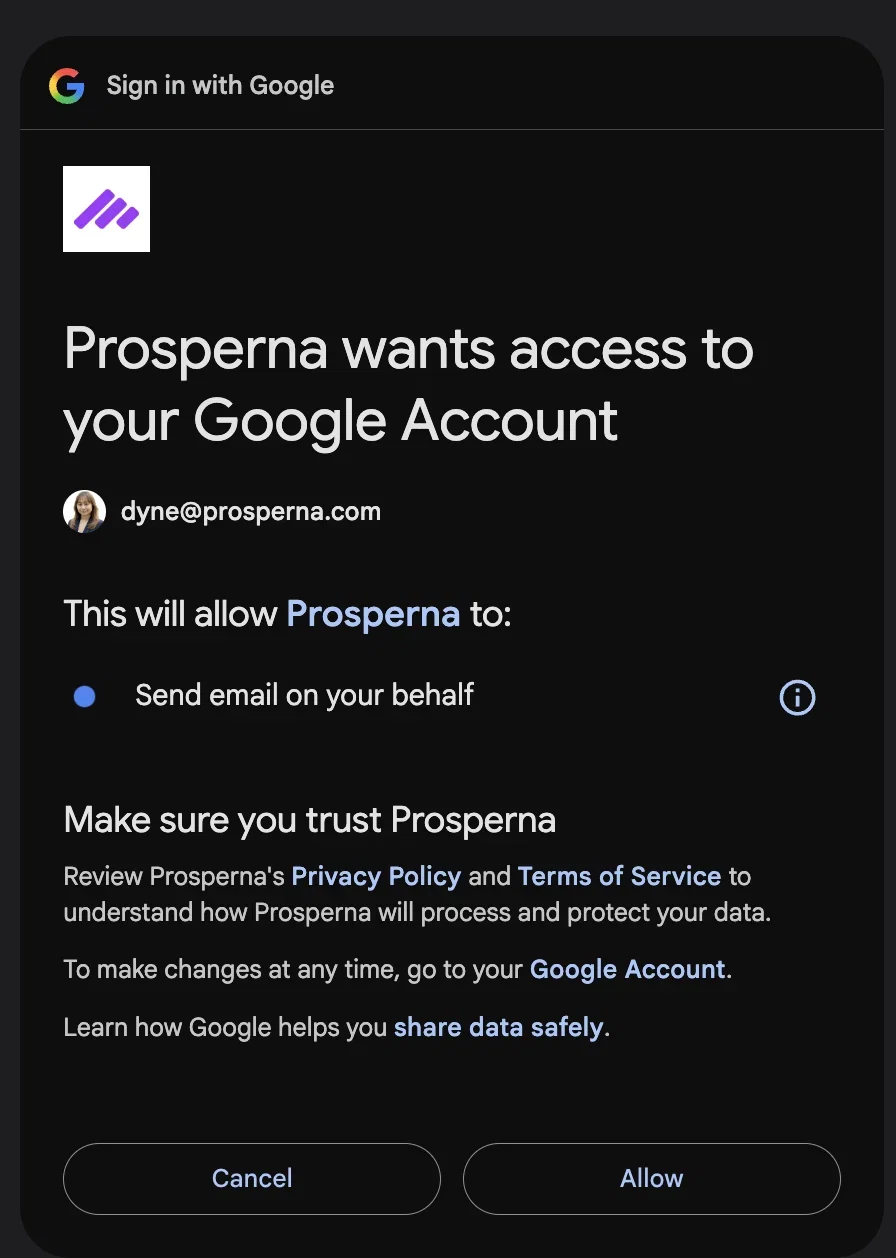
7. Confirm the connection
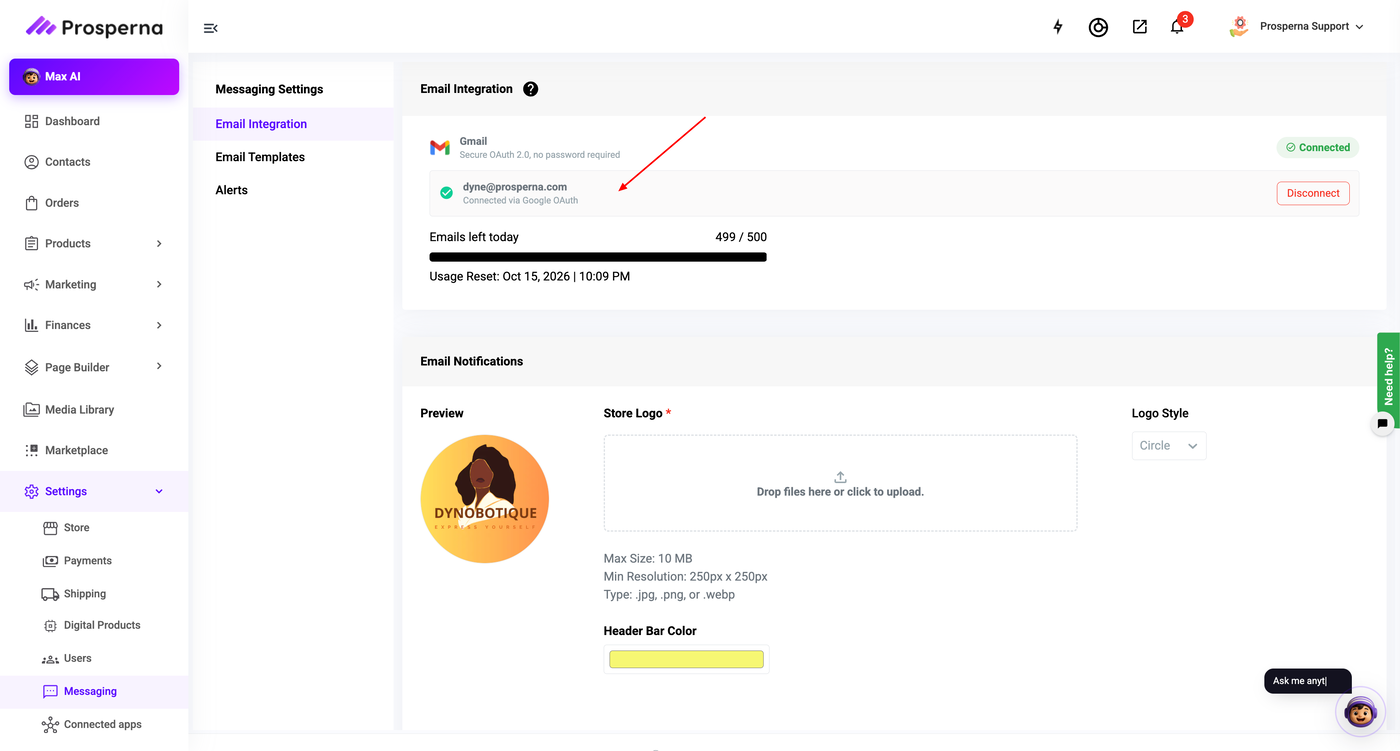
Once the connection is complete, the Email Integration page will update to show the connected Gmail account. Your Gmail account can then be used to send emails to your contacts and leads from Prosperna.
Result: You have successfully connected your Gmail
Your Gmail account is now connected to Prosperna through Google OAuth 2.0. You can use the connected Gmail account to send emails to your contacts and leads from Prosperna.
Important
You do not need to create a Google App Password.
You do not need to copy or paste an App Password into Prosperna.
You do not need to enter your Gmail password into Prosperna.
Google manages the sign-in and authorization securely through OAuth 2.0.
Need more help?
For more information and assistance, please send an email to support@prosperna.com.