

The Temporary Close feature allows you to temporarily stop accepting orders for specific store locations during a selected date and time. This is useful for holidays, maintenance, unexpected closures, or special circumstances.
Why is it important? It helps you manage store availability by preventing customers from placing orders during planned or unplanned closures. This ensures accurate order handling, avoids fulfillment issues, and provides a better customer experience during holidays, maintenance, or unexpected downtime.
Skill Level: Beginner | Advanced | Expert
How long does it take to do? 2 Minutes
Requirements:
PAID Plan
At least one store location set up
Summary:
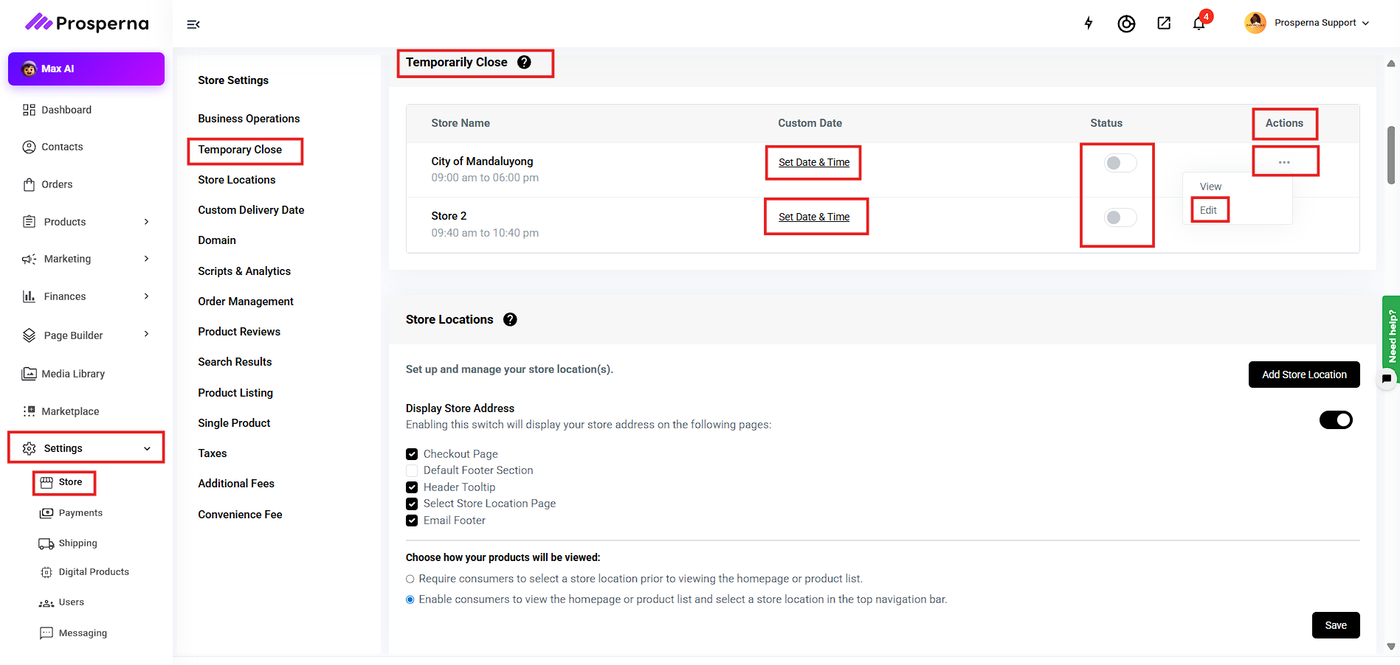
Go to Settings → Store → Temporary Close.
Select the store location you want to update.
Click Set Date & Time under Custom Date or Edit from the Actions (⋯) menu.
Choose the temporary close date and time range.
(Optional) Add a short notice in the Text field.
Click Add Custom Date and Save to apply changes.
Review or remove schedules using the trash icon if needed.
Steps How to Access Temporary Close
Go to Settings.
Select Store.
Click Temporary Close.
You will see a list of your store locations along with their operating hours, custom date settings, and status toggle.
How to Set a Temporary Close Schedule
Under Temporary Close, select the store location you want to update.
Click Set Date & Time under the Custom Date column, or click Edit from the Actions (⋯) menu.
Choose the date and time range for the temporary closure.
Save your changes.
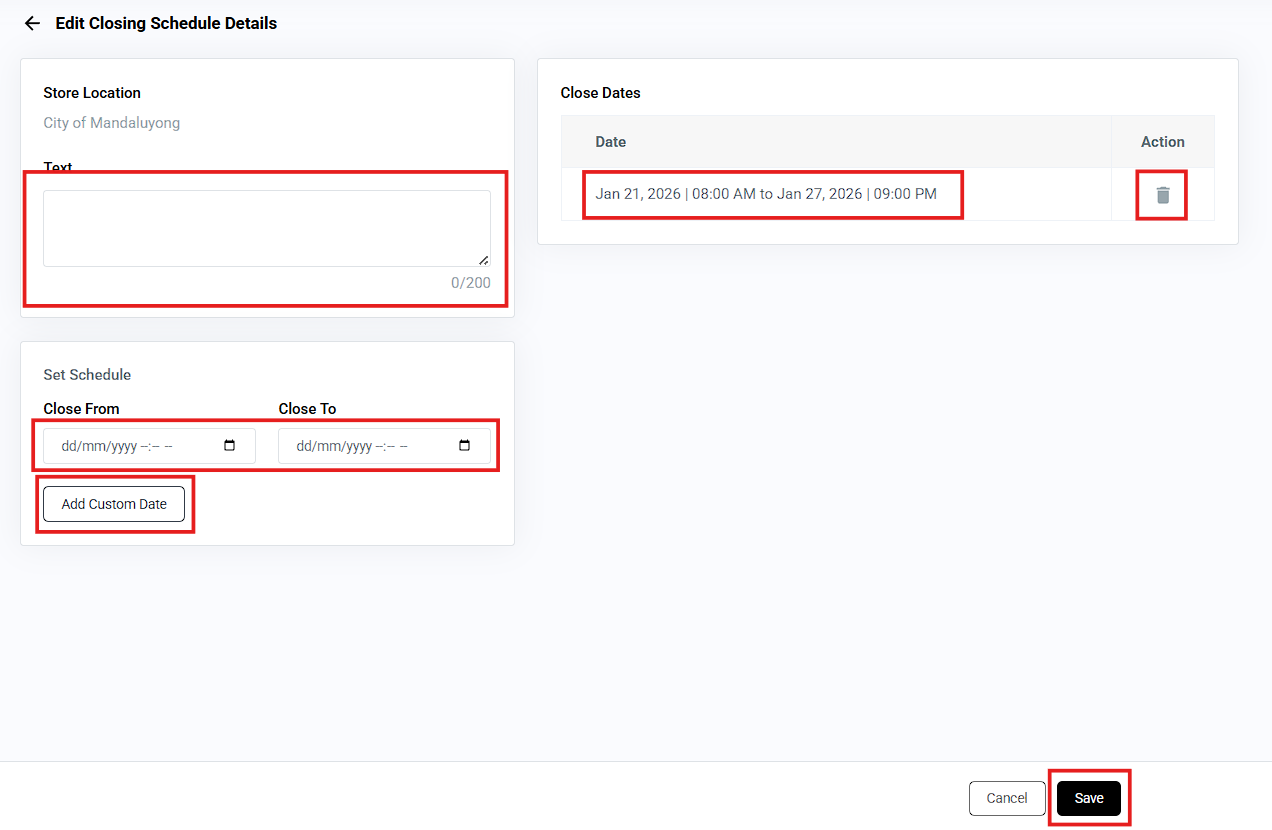
Edit Closing Schedule Details
Open Edit Closing Schedule Details and verify the Store Location.
Review existing dates under Close Dates.
(Optional) Enter a short notice in the Text field.
Select dates and times under Close From and Close To.
Click Add Custom Date to save the schedule.
Use the trash icon to remove any closing date if needed.
Save to apply changes.
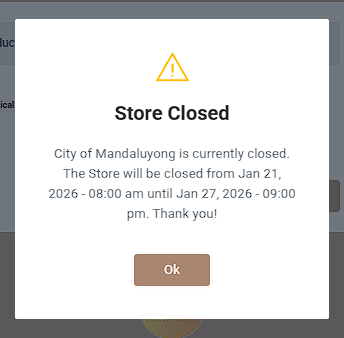
Result: You have successfully updated temporary close status and updated the Temporary close details.
Need more help?
For more information and assistance, please send an email to support@prosperna.com.
Last updated October 15, 2025