

The Media Library is a feature that should provide merchants with accessibility in managing the media content they need to display together with their products by eliminating the need to visit each product or page.
Why is it important? The Media Library allows merchants with the ease of managing their media content so that merchants can be more productive and have more time to do other stuff rather than spend most of their time trying to match up images and videos of their products available in their stores through our website.
Requirements:
Images
Summary:
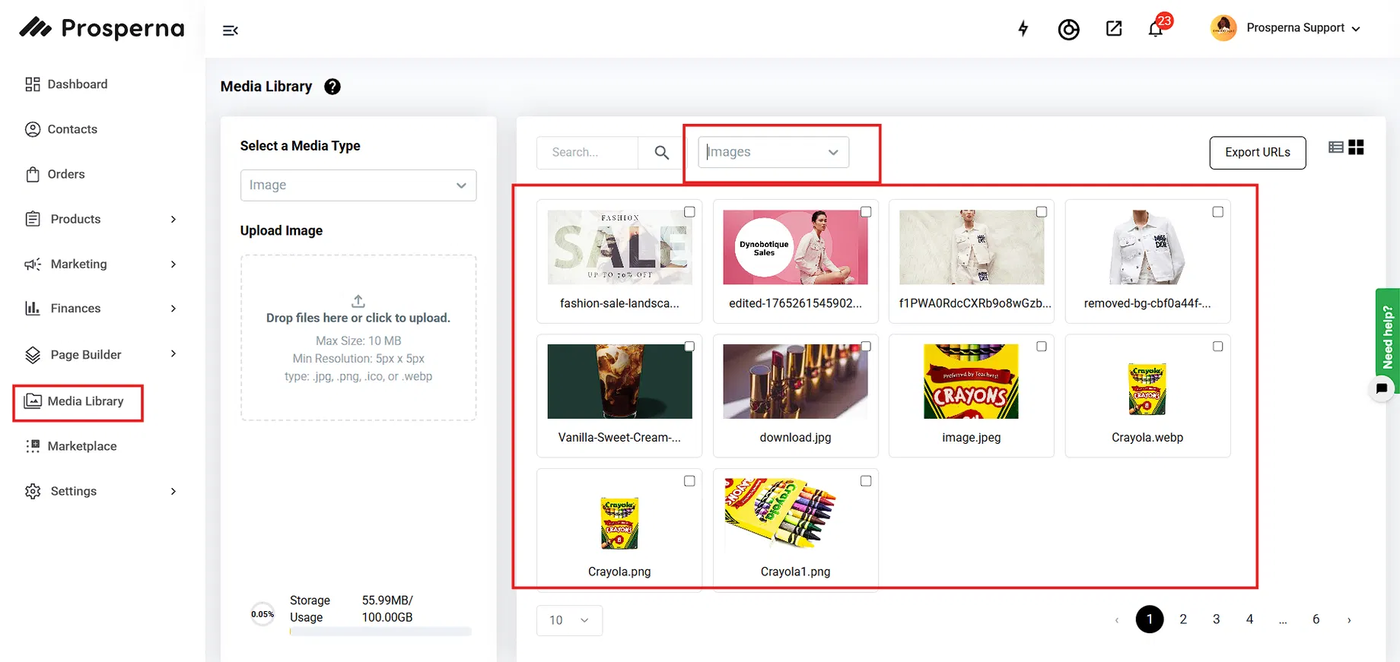
On the left side panel, click Media Library
Go to Images
Select the Image you want to edit
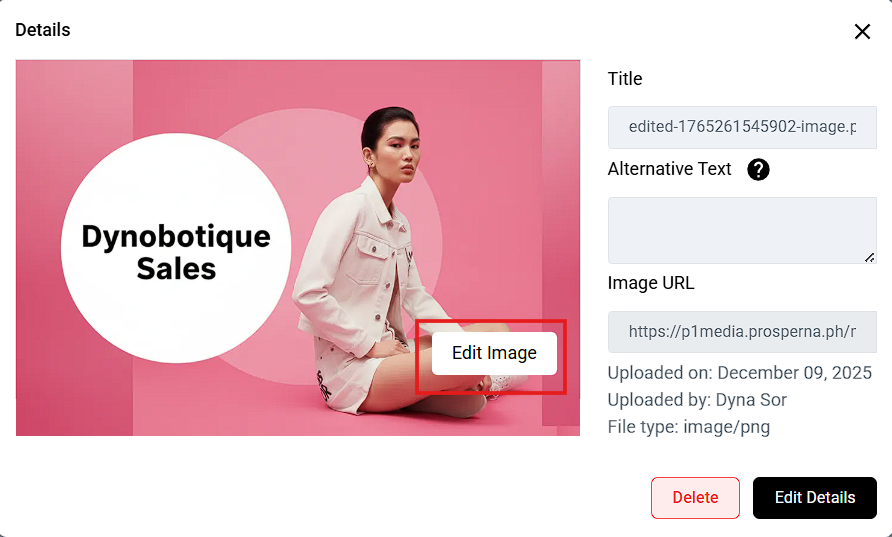
Click Edit Image
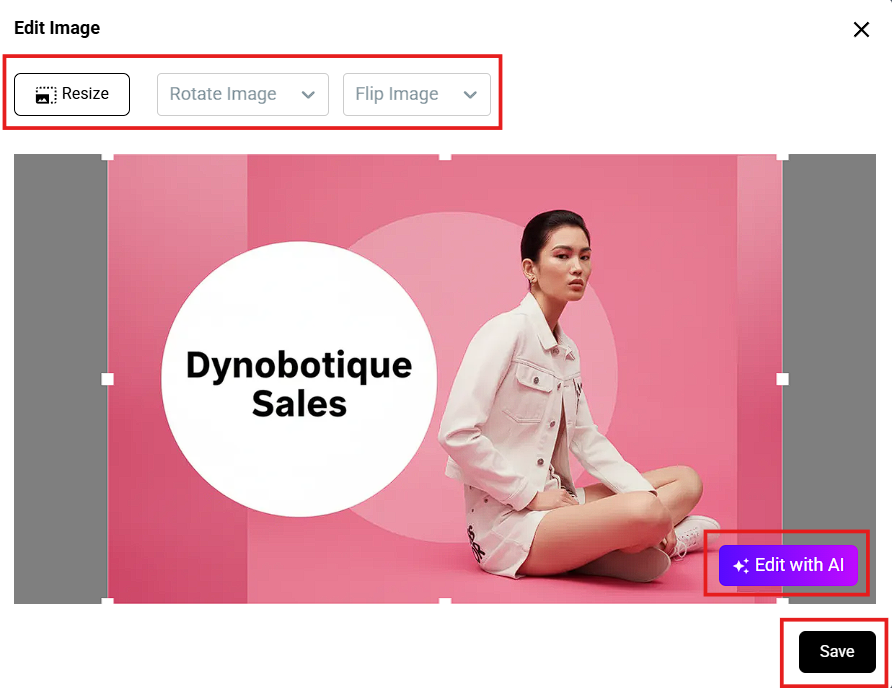
Edit Image
Click Save
Storage Limits:
Free - 10 GB
Plus - 25 GB
Pro - 50 GB
Premium - 100 GB
Steps in editing Images in the Media Library
1. On the left side panel, click Media Library.
2. Go to Images.
3. Select the Image you want to edit.
4. Click Edit Image.
5. Edit Image.
You can crop, resize, rotate, flip Images or edit with AI.
6. Click Save.
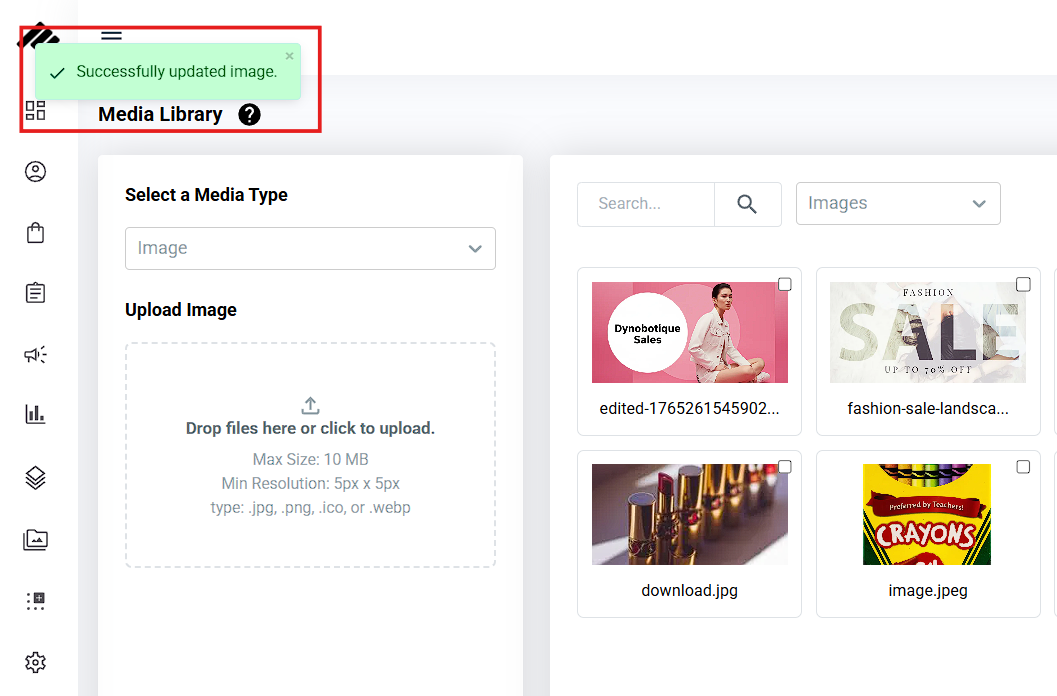
Result: You have successfully edited an Image.
Need more help?
For more information and assistance, please send an email to support@prosperna.com.