

Feature Availability: ALL PLANS
Updating cover photo for multi-location feature enables unique banners for each branch in product listings, allowing every location to display a distinct cover photo.
Why is it important? Providing unique banners per location enhances brand identity and offers a tailored shopping experience for customers at each location.
Skill Level: Beginner | Advanced | Expert
How long does it take to do? 5 Minutes
Requirements:
Cover Photo per location
Summary
Go to Page Builder and Click Design Settings
Under Design Settings, click Store Branding
Go to Cover Photo, disable the "display across all store locations" button
Edit the Cover Photo per location
Click Save
Steps on How to Update Cover Photo for Multi-location
1. Go to Page Builder and Click Design Settings
2. Under Design Settings, click Store Branding
3. Go to Cover Photo, disable the "display across all store locations" button
4. Edit the Cover Photo per location
5. Click Save
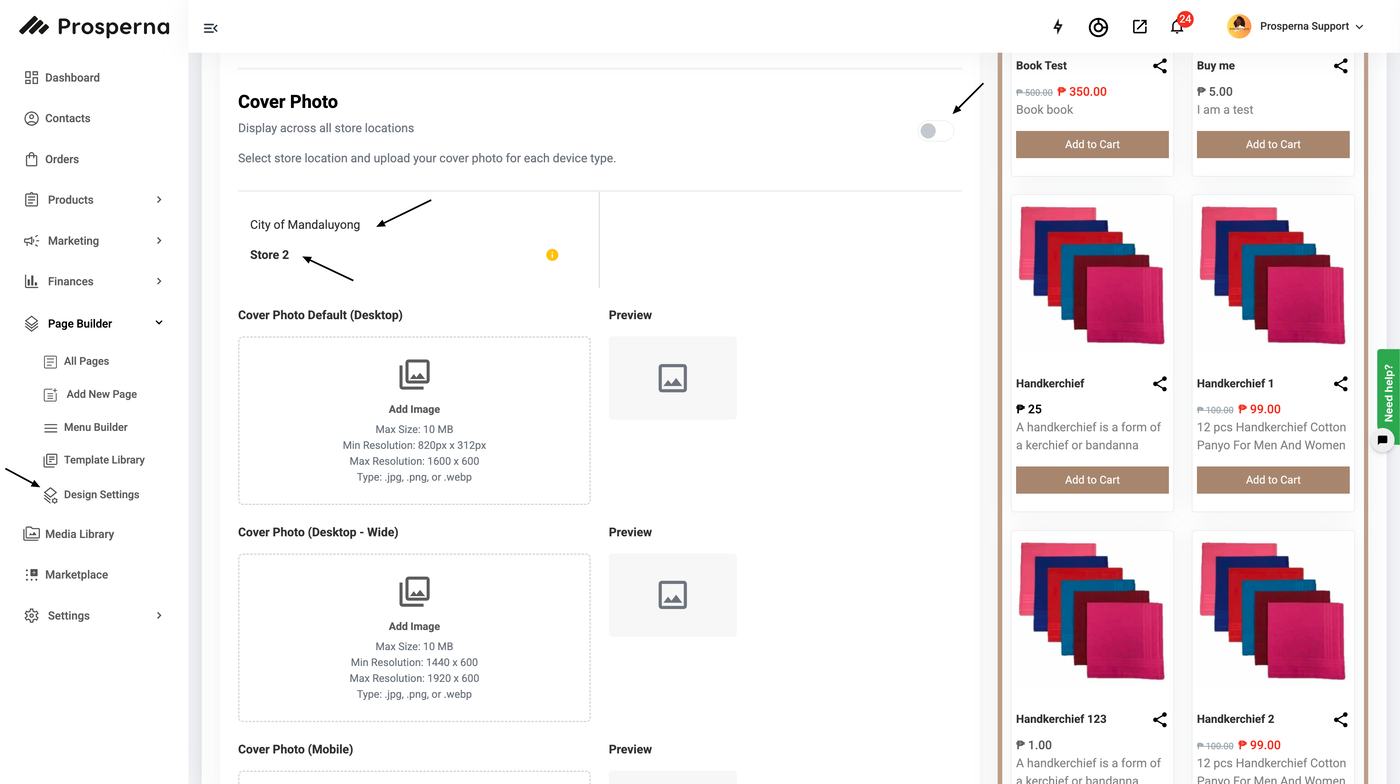
Note: When this is turned on, the cover photo will automatically override the cover photo for all stores.
Result: You have successfully updated your cover photo per location
Need more help?
For more information and assistance, please send an email to support@prosperna.com.